# Introduction

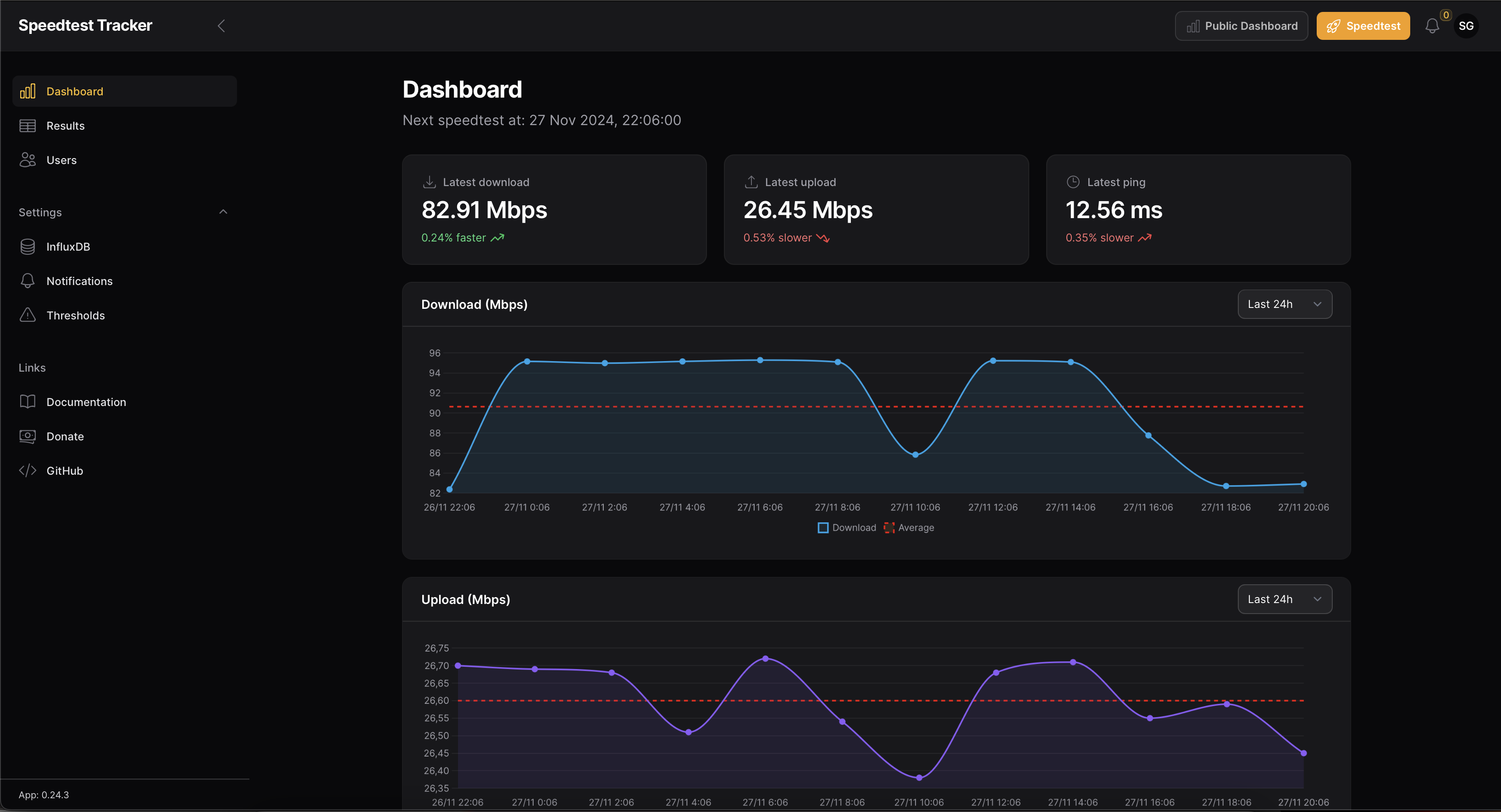
Speedtest Tracker is a self-hosted application that monitors the performance and uptime of your internet connection. Build using Laravel and Speedtest CLI from Ookla®, deployable with Docker.

{% hint style="info" %}
Docs are up-to-date through version: `v1.13.x`
{% endhint %}

<figure><img src="https://3367574858-files.gitbook.io/~/files/v0/b/gitbook-x-prod.appspot.com/o/spaces%2Fvtb3s6TB12XY9iIx8YyJ%2Fuploads%2Fgit-blob-d0f172c3d1e35390970f750fc04d5107f130689c%2Fdashboard.png?alt=media" alt=""><figcaption></figcaption></figure>

#### Why might I want this?

The main use case for Speedtest Tracker is to build a history of your internet performance and ISP's uptime so you can be informed when you're not receiving your ISP's advertised rates.

*...also some of us just like a lot of data.*

#### What about that other Speedtest Tracker?

As far as I can tell <https://github.com/henrywhitaker3/Speedtest-Tracker> was abandoned. This version is meant to be an actively maintained replacement with an improved UI and [feature](https://docs.speedtest-tracker.dev/features) set.

#### Do you have a demo?

No, but [DB Tech](https://www.youtube.com/watch?v=feArak6WCLw), [Awesome Opens Source](https://www.youtube.com/watch?v=iyRUj77cjKg) and [Techdox](https://www.youtube.com/watch?v=vZiaWyuqsaY) over on YouTube have awesome videos showing you how to get Speedtest Tracker up and running with and a quick demo.


# Features

A full list of implemented features and those that are planned.

<table><thead><tr><th width="563">Features</th><th align="right">Status</th></tr></thead><tbody><tr><td><strong>Install options</strong></td><td align="right"></td></tr><tr><td>Docker images for x86</td><td align="right">Done</td></tr><tr><td>Docker images for arm64</td><td align="right">Done</td></tr><tr><td>unRAID Community App</td><td align="right">Done</td></tr><tr><td></td><td align="right"></td></tr><tr><td><strong>Dashboard</strong></td><td align="right"></td></tr><tr><td>Show the most recent results</td><td align="right">Done</td></tr><tr><td>Pretty graphs</td><td align="right">Done</td></tr><tr><td></td><td align="right"></td></tr><tr><td><strong>Results</strong></td><td align="right"></td></tr><tr><td>History of failed and successful results</td><td align="right">Done</td></tr><tr><td>Filter by <code>scheduled</code> and <code>successful</code></td><td align="right">Done</td></tr><tr><td>Export selected results to CSV</td><td align="right">Done</td></tr><tr><td></td><td align="right"></td></tr><tr><td><strong>Speedtest options</strong></td><td align="right"></td></tr><tr><td>Scheduled tests</td><td align="right">Done</td></tr><tr><td>Adhoc test</td><td align="right">Done</td></tr><tr><td>Manually specify a server</td><td align="right">Done</td></tr><tr><td>Manually specify a list of servers</td><td align="right">Done</td></tr><tr><td>Threshold alerts</td><td align="right">Done</td></tr><tr><td></td><td align="right"></td></tr><tr><td><strong>Ping options</strong></td><td align="right"></td></tr><tr><td>Ping a domain or list of domains</td><td align="right">Planned</td></tr><tr><td></td><td align="right"></td></tr><tr><td><strong>Database support</strong></td><td align="right"></td></tr><tr><td>SQLite (default)</td><td align="right">Done</td></tr><tr><td>MariaDB / MySQL</td><td align="right">Done</td></tr><tr><td>Postgresql</td><td align="right">Done</td></tr><tr><td>InfluxDB v2</td><td align="right">Done</td></tr><tr><td>Prometheus</td><td align="right">Done</td></tr><tr><td></td><td align="right"></td></tr><tr><td><strong>Notification Channels</strong></td><td align="right"></td></tr><tr><td>In-app</td><td align="right">Done</td></tr><tr><td>Mail</td><td align="right">Done</td></tr><tr><td>Webhooks</td><td align="right">Done</td></tr><tr><td>Apprise</td><td align="right">Done</td></tr><tr><td></td><td align="right"></td></tr><tr><td><strong>Application Monitoring</strong></td><td align="right"></td></tr><tr><td><a href="https://ohdear.app/">https://ohdear.app/</a></td><td align="right">Planned</td></tr><tr><td><a href="https://thenping.me/">https://thenping.me/</a></td><td align="right">Planned</td></tr><tr><td><a href="https://healthchecks.io/">https://healthchecks.io/</a></td><td align="right">Planned</td></tr></tbody></table>


# Changelog

Important milestones in the project.

{% hint style="info" %}
A complete history of all changes can be found on GitHub in the [releases](https://github.com/alexjustesen/speedtest-tracker/releases).
{% endhint %}


# Installation

Speedtest Tracker is containerized so you can run it anywhere you run your containers. The image is built by LinuxServer.io, build information can be found [here](https://fleet.linuxserver.io/image?name=linuxserver/speedtest-tracker).

{% hint style="danger" %}
Only the installation methods listed below are supported. Any other installation methods, such as bare metal setups or Proxmox LXCs, are **not supported** by this project.
{% endhint %}

Use the install guides listed below to install Speedtest Tracker:

### Docker

* [Docker Compose](https://docs.speedtest-tracker.dev/getting-started/installation/using-docker-compose)
* [Docker Run](https://docs.speedtest-tracker.dev/getting-started/installation/using-docker)
* [Kubernetes](https://docs.speedtest-tracker.dev/getting-started/installation/using-kubernetes)

### NAS Devices

* [QNAP](https://docs.speedtest-tracker.dev/getting-started/installation/using-qnap)
* [Synology](https://docs.speedtest-tracker.dev/getting-started/installation/using-synology)
* [Unraid](https://docs.speedtest-tracker.dev/getting-started/installation/using-unraid)


# Using Docker Compose

These instructions will run you through setting up Speedtest Tracker on a Docker server using Docker Compose.

Setting up your environment with Docker Compose is the recommended way as it'll setup the application and a database for you. These steps will run you through setting up the application using Docker and Docker Compose.

{% hint style="info" %}
Docker run commands can be found on the [Using Docker](https://docs.speedtest-tracker.dev/getting-started/installation/using-docker) page and assume you already have a database installed and configured.
{% endhint %}

### Install with Docker Compose

{% stepper %}
{% step %}
**Generate an Application Key**

Run the command below to generate a key, the key is required for [encryption](https://docs.speedtest-tracker.dev/security/encryption). Copy this key including the `base64:` prefix and paste it as your `APP_KEY` value.

```bash
echo "base64:$(openssl rand -base64 32 2>/dev/null)"
```

{% endstep %}

{% step %}
**Setting Up Docker**

SQLite is fine for most installs but you can also use more traditional relational databases like MariaDB, MySQL and Postgres.

{% hint style="info" %}
You will need to get your user's `PUID` and `PGID`, you can do this by running `id $user` on the host.

<https://docs.linuxserver.io/general/understanding-puid-and-pgid/>
{% endhint %}

{% tabs %}
{% tab title="SQLite" %}

```yaml
services:
    speedtest-tracker:
        image: lscr.io/linuxserver/speedtest-tracker:latest
        restart: unless-stopped
        container_name: speedtest-tracker
        ports:
            - 8080:80
            - 8443:443
        environment:
            - PUID= 
            - PGID=
            - APP_KEY= # Required
            - APP_URL= # Required
            - DB_CONNECTION=sqlite
        volumes:
            - /path/to/data:/config
            - /path/to-custom-ssl-keys:/config/keys
```

{% endtab %}

{% tab title="MariaDB" %}

<pre class="language-yaml"><code class="lang-yaml">services:
<strong>    speedtest-tracker:
</strong>        image: lscr.io/linuxserver/speedtest-tracker:latest
        restart: unless-stopped
        container_name: speedtest-tracker
        ports:
            - 8080:80
            - 8443:443
        environment:
            - PUID=
            - PGID=
            - APP_KEY= # Required
            - APP_URL= # Required
            - DB_CONNECTION=mariadb
            - DB_HOST=db
            - DB_PORT=3306
            - DB_DATABASE=speedtest_tracker
            - DB_USERNAME=speedtest_tracker
            - DB_PASSWORD=password
        volumes:
            - /path/to/data:/config
            - /path/to-custom-ssl-keys:/config/keys
        depends_on:
            - db
    db:
        image: mariadb:11
        restart: always
        environment:
            - MYSQL_DATABASE=speedtest_tracker
            - MYSQL_USER=speedtest_tracker
            - MYSQL_PASSWORD=password
            - MYSQL_RANDOM_ROOT_PASSWORD=true
        volumes:
            - speedtest-db:/var/lib/mysql
        healthcheck:
            test: ["CMD", "healthcheck.sh", "--connect", "--innodb_initialized"]
            interval: 5s
            retries: 3
            timeout: 5s
volumes:
  speedtest-db:
</code></pre>

{% endtab %}

{% tab title="MySQL" %}

```yaml
services:
    speedtest-tracker:
        image: lscr.io/linuxserver/speedtest-tracker:latest
        restart: unless-stopped
        container_name: speedtest-tracker
        ports:
            - 8080:80
            - 8443:443
        environment:
            - PUID=
            - PGID=
            - APP_KEY= # Required
            - APP_URL= # Required
            - DB_CONNECTION=mysql
            - DB_HOST=db
            - DB_PORT=3306
            - DB_DATABASE=speedtest_tracker
            - DB_USERNAME=speedtest_tracker
            - DB_PASSWORD=password
        volumes:
            - /path/to/data:/config
            - /path/to-custom-ssl-keys:/config/keys
        depends_on:
            - db
    db:
        image: mysql:8
        restart: always
        environment:
            - MYSQL_DATABASE=speedtest_tracker
            - MYSQL_USER=speedtest_tracker
            - MYSQL_PASSWORD=password
            - MYSQL_RANDOM_ROOT_PASSWORD=true
        volumes:
            - speedtest-db:/var/lib/mysql
        healthcheck:
            test: ["CMD", "mysqladmin", "ping", "-p${MYSQL_PASSWORD}"]
            interval: 5s
            retries: 5
            timeout: 5s
volumes:
  speedtest-db:
```

{% endtab %}

{% tab title="Postgres" %}

```yaml
services:
    speedtest-tracker:
        image: lscr.io/linuxserver/speedtest-tracker:latest
        restart: unless-stopped
        container_name: speedtest-tracker
        ports:
            - 8080:80
            - 8443:443
        environment:
            - PUID=
            - PGID=
            - APP_KEY= # Required
            - APP_URL= # Required
            - DB_CONNECTION=pgsql
            - DB_HOST=db
            - DB_PORT=5432
            - DB_DATABASE=speedtest_tracker
            - DB_USERNAME=speedtest_tracker
            - DB_PASSWORD=password
        volumes:
            - /path/to/data:/config
            - /path/to-custom-ssl-keys:/config/keys
        depends_on:
            - db
    db:
        image: postgres:18
        restart: always
        environment:
            - POSTGRES_DB=speedtest_tracker
            - POSTGRES_USER=speedtest_tracker
            - POSTGRES_PASSWORD=password
            - PGDATA=/var/lib/postgresql/data/
        volumes:
            - speedtest-db:/var/lib/postgresql/data
        healthcheck:
            test: ["CMD-SHELL", "pg_isready -U ${POSTGRES_USER:-postgres}"]
            interval: 10s
            retries: 5
            timeout: 5s
volumes:
  speedtest-db:
```

{% endtab %}
{% endtabs %}

{% hint style="info" %}
If you would like to provide your own SSL keys, they must be named `cert.crt` (full chain) and `cert.key` (private key), and mounted in the container folder `/config/keys`.
{% endhint %}
{% endstep %}

{% step %}
**Environment Variables**

In order for the application to run smoothly, some environment variables need to be set. Check out the [Environment Variables](https://docs.speedtest-tracker.dev/getting-started/environment-variables) section. Make sure all **required** variables are configured.
{% endstep %}

{% step %}
**Configuration Variables (Optional)**

You can set configuration variables to have automatic speedtest on an schedule. Check out the [Environment Variables](https://docs.speedtest-tracker.dev/environment-variables#speedtest) section on how to set the variables. Also see the [FAQ](https://docs.speedtest-tracker.dev/help/faqs#speedtest) for tips effectively scheduling tests.

{% hint style="info" %}
Complete overview of the Environment Variables for custom configuration can be found [here](https://docs.speedtest-tracker.dev/getting-started/environment-variables).
{% endhint %}
{% endstep %}

{% step %}
**Start the Container**

You can now start the container accordingly the platform you are on.
{% endstep %}

{% step %}
**First Login**

During the start the container there is a default username and password created. Use the [default login](https://docs.speedtest-tracker.dev/security/authentication#default-user-account) credentials to login to the application. You can [change the default user](https://docs.speedtest-tracker.dev/security/authentication#change-account-details) after logging in.
{% endstep %}
{% endstepper %}


# Using Docker

These instructions will run you through setting up Speedtest Tracker on a Docker server using Docker run.

Setting up your environment with Docker Compose is the recommended way as it'll setup the application and a database for you. These steps will run you through setting up the application using Docker and Docker Compose.

{% hint style="info" %}
Docker run commands assume you already have a database installed and configured.
{% endhint %}

### Install with Docker Run

{% stepper %}
{% step %}
**Generate an Application Key**

Run the command below to generate a key, the key is required for [encryption](https://docs.speedtest-tracker.dev/security/encryption). Copy this key including the `base64:` prefix and paste it as your `APP_KEY` value.

```bash
echo "base64:$(openssl rand -base64 32 2>/dev/null)"
```

{% endstep %}

{% step %}
**Setting Up Docker**

SQLite is fine for most installs but you can also use more traditional relational databases like MariaDB, MySQL and Postgres.

{% hint style="info" %}
You will need to get your user's `PUID` and `PGID`, you can do this by running `id $user` on the host.

<https://docs.linuxserver.io/general/understanding-puid-and-pgid/>
{% endhint %}

{% tabs %}
{% tab title="SQLite" %}

<pre class="language-docker"><code class="lang-docker">docker run -d --name speedtest-tracker --restart unless-stopped \
    -p 8080:80 \
    -p 8443:443 \
    -e PUID= \
    -e PGID= \
    -e <a data-footnote-ref href="#user-content-fn-1">APP_KEY</a>= \
    -e <a data-footnote-ref href="#user-content-fn-2">APP_URL</a>= \
    -e DB_CONNECTION=sqlite \
    -v /path/to/data:/config \
    -v /path/to-custom-ssl-keys:/config/keys \
    lscr.io/linuxserver/speedtest-tracker:latest
</code></pre>

{% endtab %}

{% tab title="MariaDB" %}

```
docker run -d --name speedtest-tracker --restart unless-stopped \
    -p 8080:80 \
    -p 8443:443 \
    -e PUID= \
    -e PGID= \
    -e <a data-footnote-ref href="#user-content-fn-1">APP_KEY</a>= \
    -e <a data-footnote-ref href="#user-content-fn-2">APP_URL</a>= \
    -e DB_CONNECTION=mariadb \
    -e DB_HOST= \
    -e DB_PORT=3306 \
    -e DB_DATABASE=speedtest_tracker \
    -e DB_USERNAME= \
    -e DB_PASSWORD= \
    -v /path/to/data:/config \
    -v /path/to-custom-ssl-keys:/config/keys \
    lscr.io/linuxserver/speedtest-tracker:latest
```

{% endtab %}

{% tab title="MySQL" %}

```
docker run -d --name speedtest-tracker --restart unless-stopped \   
    -p 8080:80 \
    -p 8443:443 \
    -e PUID= \
    -e PGID= \
    -e <a data-footnote-ref href="#user-content-fn-1">APP_KEY</a>= \
    -e <a data-footnote-ref href="#user-content-fn-2">APP_URL</a>= \
    -e DB_CONNECTION=mysql \
    -e DB_HOST= \
    -e DB_PORT=3306 \
    -e DB_DATABASE=speedtest_tracker \
    -e DB_USERNAME= \
    -e DB_PASSWORD= \
    -v /path/to/data:/config \
    -v /path/to-custom-ssl-keys:/config/keys \
    lscr.io/linuxserver/speedtest-tracker:latest
```

{% endtab %}

{% tab title="Postgres" %}

```
docker run -d --name speedtest-tracker --restart unless-stopped \   
    -p 8080:80 \
    -p 8443:443 \
    -e PUID=1000 \
    -e PGID=1000 \
    -e <a data-footnote-ref href="#user-content-fn-1">APP_KEY</a>= \
    -e <a data-footnote-ref href="#user-content-fn-2">APP_URL</a>= \
    -e DB_CONNECTION=pgsql \
    -e DB_HOST= \
    -e DB_PORT=5432 \
    -e DB_DATABASE=speedtest_tracker \
    -e DB_USERNAME= \
    -e DB_PASSWORD= \
    -v /path/to/data:/config \
    -v /path/to-custom-ssl-keys:/config/keys \
    lscr.io/linuxserver/speedtest-tracker:latest
```

{% endtab %}
{% endtabs %}

{% hint style="info" %}
If you would like to provide your own SSL keys, they must be named `cert.crt` (full chain) and `cert.key` (private key), and mounted in the container folder `/config/keys`.
{% endhint %}
{% endstep %}

{% step %}
**Environment Variables**

In order for the application to run smoothly, some environment variables need to be set. Check out the [Environment Variables](https://docs.speedtest-tracker.dev/getting-started/environment-variables) section. Make sure all **required** variables are configured.
{% endstep %}

{% step %}
**Configuration Variables (Optional)**

You can set configuration variables to have automatic speedtest on an schedule. Check out the [Environment Variables](https://docs.speedtest-tracker.dev/environment-variables#speedtest) section on how to set the variables. Also see the [FAQ](https://docs.speedtest-tracker.dev/help/faqs#speedtest) for tips effectively scheduling tests.

{% hint style="info" %}
Complete overview of the Environment Variables for custom configuration can be found [here](https://docs.speedtest-tracker.dev/getting-started/environment-variables).
{% endhint %}
{% endstep %}

{% step %}
**Start the Container**

You can now start the container accordingly the platform you are on.
{% endstep %}

{% step %}
**First Login**

During the start the container there is a default username and password created. Use the [default login](https://docs.speedtest-tracker.dev/security/authentication#default-user-account) credentials to login to the application. You can [change the default user](https://docs.speedtest-tracker.dev/security/authentication#change-account-details) after logging in.
{% endstep %}
{% endstepper %}

[^1]: Generate with: `echo "base64:$(openssl rand -base64 32 2>/dev/null)"`

[^2]: The URL where you'll access the app (e.g., `http://localhost:8080`)


# Using Kubernetes

These instructions will run you through setting up Speedtest Tracker in a Kubernetes cluster.

### Community Manifests

{% embed url="<https://github.com/maximemoreillon/kubernetes-manifests/tree/master/speedtest-tracker>" %}


# Using QNAP

These instructions will run you through setting up Speedtest Tracker on a QNAP NAS using Container Station.

These instructions will run you through setting up the application on a QNAP NAS and will also create a MariaDB container for you to use as a database.

1. Open **"Container Station"** and select **"Applications"** from the left-hand navigation menu.
2. Press the **"Create"** button.
3. Provide a name for the application.
4. Paste the below Docker Compose code into the text box, this is a modification of the MariaDB Docker Compose [install ](https://docs.speedtest-tracker.dev/getting-started/installation/using-docker-compose)instructions.
5. Click **"Validate"** to make sure there are no errors.
6. Click **"Create"** to deploy the application.

### Example Docker Compose

{% hint style="info" %}
A full list of released versions can be found [here](https://fleet.linuxserver.io/image?name=linuxserver/speedtest-tracker)
{% endhint %}

```yaml
version: '3.4'
services:
  speedtest-tracker:
    container_name: speedtest-tracker
    ports:
      - 8080:80
      - 8443:443
    environment:
      - PUID=
      - PGID=
      - DB_CONNECTION=mariadb
      - DB_HOST=db
      - DB_PORT=3306
      - DB_DATABASE=speedtest_tracker
      - DB_USERNAME=speedy
      - DB_PASSWORD=password
      - APP_KEY=
      - DATETIME_FORMAT=
      - APP_TIMEZONE=
      - SPEEDTEST_SCHEDULE= # Optional
      - SPEEDTEST_SERVERS= # Optional
    volumes:
      - /path/to-data:/config
      - /path/to-custom-ssl-keys:/config/keys
    image: lscr.io/linuxserver/speedtest-tracker:latest
    networks:
      qnet-network:
        ipv4_address: 192.168.1.3
    restart: unless-stopped
    depends_on:
      - db
  db:
    image: mariadb:10
    networks:
      qnet-network:
        ipv4_address: 192.168.1.4
    restart: always
    environment:
      - MARIADB_DATABASE=speedtest_tracker
      - MARIADB_USER=speedy
      - MARIADB_PASSWORD=password
      - MARIADB_RANDOM_ROOT_PASSWORD=true
    volumes:
      - speedtest-db:/var/lib/mysql

networks:
  qnet-network:
    driver_opts:
      iface: eth0
    driver: qnet
    ipam:
      driver: qnet
      options:
        iface: eth0
      config:
        - subnet: 192.168.1.0/24
          gateway: 192.168.1.1

volumes:
  speedtest-db:
```


# Using Synology

These instructions will run you through setting up Speedtest Tracker on a Synology NAS using Container Manager.

{% hint style="warning" %}
The following directions are for the old "Docker" application, if you're using "Container Manager" you can follow the docker compose instructions in [using-docker-compose](https://docs.speedtest-tracker.dev/getting-started/installation/using-docker-compose "mention").
{% endhint %}

### Install on a Synology NAS

{% hint style="warning" %}
This guide assumes you know how to use the old "Docker" application.
{% endhint %}

{% stepper %}
{% step %}
**Download Image**

Open the Docker interface of your Synology Device, search for `linuxserver/speedtest-tracker` in the Registry and download it.
{% endstep %}

{% step %}
**Create Directory**

Create a local directory (i.e. `/volume1/docker/speedtest-tracker`) which later can be mapped to the docker container.
{% endstep %}

{% step %}
**Start Image**

Launch the image once the download is completed.
{% endstep %}

{% step %}
**Map Ports**

Map the ports to available ports.

| Local Port | Container Port |
| ---------- | -------------- |
| 8443       | 443            |
| 8080       | 80             |

{% hint style="info" %}
Make sure the ports you choose are not used by any other application or DSM service on your device and remember to adjust the Synology Firewall settings accordingly.
{% endhint %}
{% endstep %}

{% step %}
**Map Directory**

Map the directory you created earlier to the mount path `/config`.
{% endstep %}

{% step %}
**Finish**

Review your settings and click "done".

You can now access Speedtest-Tracker via `http://YOUR_IP_ADDRESS:8080` or `https://YOUR_IP_ADDRESS:8443`.
{% endstep %}
{% endstepper %}


# Using Unraid

These instructions will run you through setting up Speedtest Tracker on an Unraid NAS using Community Applications.

### Install on Unraid OS

Use the Community Applications plugin to install one of the templates below by searching for "Speedtest Tracker".

* LinuxServer.io - [Template support](https://github.com/linuxserver/docker-speedtest-tracker)
* ZappyZap - [Template support](https://forums.unraid.net/topic/130245-support-devzwf-speedtest-tracker/)


# Environment Variables

A complete inventory of all environment variables for configuring Speedtest Tracker.

### Application

<table><thead><tr><th width="218">Name</th><th width="100" data-type="checkbox">Required</th><th>Description</th><th>Example</th></tr></thead><tbody><tr><td><code>PUID</code></td><td>true</td><td>Used to set the user the container should run as.</td><td><code>1000</code></td></tr><tr><td><code>PGID</code></td><td>true</td><td>Used to set the group the container should run as.</td><td><code>1000</code></td></tr><tr><td><code>APP_KEY</code></td><td>true</td><td>Key used to encrypt and decrypt data. See the <a href="installation">install</a> docs to generate a key.</td><td></td></tr><tr><td><code>APP_URL</code></td><td>true</td><td>URL used for links in emails and notifications.</td><td><code>https://speedtest.example.com</code></td></tr><tr><td><code>APP_NAME</code></td><td>false</td><td>Used to define the application's name in the dashboard and in notifications.</td><td></td></tr><tr><td><code>ADMIN_NAME</code></td><td>false</td><td>Name of the initial admin user.<br>Note: Only effective during initial setup.</td><td><code>Admin</code></td></tr><tr><td><code>ADMIN_EMAIL</code></td><td>false</td><td>Email of the initial admin user.<br>Note: Only effective during initial setup.</td><td><code>admin@example.com</code></td></tr><tr><td><code>ADMIN_PASSWORD</code></td><td>false</td><td>Password of the initial admin user.<br>Note: Only effective during initial setup.</td><td><code>password</code></td></tr><tr><td><code>ASSET_URL</code></td><td>false</td><td>URL used for assets, needed when using a reverse proxy.</td><td><code>https://speedtest.example.com</code></td></tr><tr><td><code>APP_LOCALE</code></td><td>false</td><td>Change the default language.</td><td></td></tr><tr><td><code>APP_TIMEZONE</code></td><td>false</td><td>Application timezone should be set if your database does not use UTC as its default timezone.</td><td><code>Europe/London</code></td></tr><tr><td><code>ALLOWED_IPS</code></td><td>false</td><td>Block requests to the application unless from the allowed addresses.</td><td><code>127.0.0.1,127.0.0.2</code></td></tr></tbody></table>

***

### Display

<table><thead><tr><th width="218">Name</th><th width="100" data-type="checkbox">Required</th><th>Description</th><th>Example</th></tr></thead><tbody><tr><td><code>CHART_BEGIN_AT_ZERO</code></td><td>false</td><td>Begin the dashboard axis charts at zero.<br><br>- Default: <code>true</code></td><td><code>true</code> or <code>false</code></td></tr><tr><td><code>CHART_DATETIME_FORMAT</code></td><td>false</td><td>Set the formatting of timestamps in charts.<br><br>Formatting: <a href="https://www.php.net/manual/en/datetime.format.php">https://www.php.net/manual/en/datetime.format.php</a></td><td><code>j/m G:i</code><br>(18/10 20:06)</td></tr><tr><td><code>DATETIME_FORMAT</code></td><td>false</td><td>Set the formatting of timestamps in tables and notifications.<br><br>Formatting: <a href="https://www.php.net/manual/en/datetime.format.php">https://www.php.net/manual/en/datetime.format.php</a></td><td><code>j M Y, G:i:s</code><br>(18 Oct 2024, 20:06:01)</td></tr><tr><td><code>DISPLAY_TIMEZONE</code></td><td>false</td><td>Display timestamps in your local time.</td><td><code>America/New_York</code></td></tr><tr><td><code>CONTENT_WIDTH</code></td><td>false</td><td>Width of the content section of each page. Can be set to any value found in the Filament <a href="https://filamentphp.com/docs/4.x/panel-configuration#customizing-the-maximum-content-width">docs</a>.<br><br>- Default: <code>7xl</code></td><td></td></tr><tr><td><code>PUBLIC_DASHBOARD</code></td><td>false</td><td>Enables the public dashboard for guest (unauthenticated) users.<br><br>- Default: <code>false</code></td><td></td></tr><tr><td><code>DEFAULT_CHART_RANGE</code></td><td>false</td><td>Set the default time range for the dashboards<br><br>- Default: <code>24h</code></td><td>Options: <code>24h</code>, <code>week</code> or <code>month</code></td></tr></tbody></table>

***

### Speed tests

<table><thead><tr><th width="221">Name</th><th width="100" data-type="checkbox">Required</th><th>Description</th><th>Example</th></tr></thead><tbody><tr><td><code>SPEEDTEST_SKIP_IPS</code></td><td>false</td><td>A comma separated list of public IP addresses where tests will be skipped when present.</td><td><code>127.0.0.1</code> or <code>127.0.0.0/16</code></td></tr><tr><td><code>SPEEDTEST_SCHEDULE</code></td><td>false</td><td>Cron expression used to run speedtests on a scheduled basis. https://crontab.guru/ is a helpful tool.</td><td><code>6 */2 * * *</code><br>(<em>At minute 6 past every 2nd hour)</em></td></tr><tr><td><code>SPEEDTEST_SERVERS</code></td><td>false</td><td><p>Comma separated list of server IDs to randomly use for speedtest.</p><p>To find servers near you visit: <a href="https://www.speedtest.net/api/js/servers">https://www.speedtest.net/api/js/servers</a></p></td><td><code>52365</code> or <code>36998,52365</code></td></tr><tr><td><code>SPEEDTEST_BLOCKED_SERVERS</code></td><td>false</td><td>Comma separated list of server IDs that should not be used when running an Ookla Speedtest.</td><td></td></tr><tr><td><code>SPEEDTEST_INTERFACE</code></td><td>false</td><td>Set the network interface to use for the test. This need to be the network interface available inside the container</td><td><code>eth0</code></td></tr><tr><td><code>SPEEDTEST_EXTERNAL_IP_URL</code></td><td>false</td><td>URL of a service used to get the external WAN IP address. URL should contain the protocol i.e. <code>https://</code></td><td><code>https://icanhazip.com</code></td></tr><tr><td><code>SPEEDTEST_INTERNET_CHECK_HOSTNAME</code></td><td>false</td><td>Hostname used to ping for an active internet connection.</td><td></td></tr><tr><td><code>THRESHOLD_ENABLED</code></td><td>false</td><td>Enable the thresholds. Note: Only effective during initial setup.</td><td><code>true</code></td></tr><tr><td><code>THRESHOLD_DOWNLOAD</code></td><td>false</td><td><p>Set the Download Threshold</p><p>Note: Only effective during initial setup.</p></td><td><code>900</code></td></tr><tr><td><code>THRESHOLD_UPLOAD</code></td><td>false</td><td><p>Set the Upload Threshold</p><p>Note: Only effective during initial setup.</p></td><td><code>900</code></td></tr><tr><td><code>THRESHOLD_PING</code></td><td>false</td><td><p>Set the Ping Threshold</p><p>Note: Only effective during initial setup.</p></td><td><code>25</code></td></tr><tr><td><code>PRUNE_RESULTS_OLDER_THAN</code></td><td>false</td><td>Set the value to greater than zero to prune stored results. This value should be represented in days, e.g. <code>7</code> will purge all results over 7 days old.</td><td><code>7</code></td></tr></tbody></table>

***

### API

<table><thead><tr><th width="221">Name</th><th data-type="checkbox">Required</th><th>Description</th><th>Example</th></tr></thead><tbody><tr><td><code>API_RATE_LIMIT</code></td><td>false</td><td>Number of requests per minute to the API.<br><br>- Default: <code>60</code></td><td><code>100</code></td></tr><tr><td><code>API_MAX_RESULTS</code></td><td>false</td><td>Sets the maximum number of results returned by API.<br><br>- Default <code>500</code><br></td><td><code>500</code></td></tr></tbody></table>


# Database Drivers

Speedtest Tracker supports multiple database drivers including SQLite, MySQL and Postgres.

Since Speedtest Tracker is built on the Laravel Framework any of the framework's supported database [drivers](https://laravel.com/docs/10.x/database#configuration) are also supported.

SQLite ships as the default driver but you can also use MySQL/MariaDB/Postgres.

> While SQL Server is supported by Laravel it hasn't been tested with Speedtest Tracker so no support will be provided for that driver.

***

### Driver Options

#### SQLite (Default)

SQLite is a good option for simple installs. The database will be create automatically inside the docker volume.

| Environment Variable | Value    |
| -------------------- | -------- |
| `DB_CONNECTION`      | `sqlite` |

#### MariaDB

| Environment Variable | Value                                                    |
| -------------------- | -------------------------------------------------------- |
| `DB_CONNECTION`      | `mariadb`                                                |
| `DB_HOST`            | The FQDN or address to the database instance.            |
| `DB_PORT`            | `3306` is the default port but can depend on your setup. |
| `DB_DATABASE`        | Name of the database you'll connect to.                  |
| `DB_USERNAME`        | User that'll be used to connect to the database.         |
| `DB_PASSWORD`        | Password for the user above.                             |

#### MySQL

| Environment Variable | Value                                                    |
| -------------------- | -------------------------------------------------------- |
| `DB_CONNECTION`      | `mysql`                                                  |
| `DB_HOST`            | The FQDN or address to the database instance.            |
| `DB_PORT`            | `3306` is the default port but can depend on your setup. |
| `DB_DATABASE`        | Name of the database you'll connect to.                  |
| `DB_USERNAME`        | User that'll be used to connect to the database.         |
| `DB_PASSWORD`        | Password for the user above.                             |

#### Postgres

| Environment Variable | Value                                                    |
| -------------------- | -------------------------------------------------------- |
| `DB_CONNECTION`      | `pgsql`                                                  |
| `DB_HOST`            | The FQDN or address to the database instance.            |
| `DB_PORT`            | `5432` is the default port but can depend on your setup. |
| `DB_DATABASE`        | Name of the database you'll connect to.                  |
| `DB_USERNAME`        | User that'll be used to connect to the database.         |
| `DB_PASSWORD`        | Password for the user above.                             |
| `DB_SEARCH_PATH`     | To change the database schema used by Postgres.          |


# Error Messages

### Troubleshooting

For all below errors there will be more information provided in the container logs. You can check the logs for more details by checking the container logs by running `docker logs speedtest-tracker`.

or any other equivalent command for your setup.

<details>

<summary>Enable Debugging</summary>

By default `APP_DEBUG` is set to `false` in production to prevent verbose error outputs. To debug the issue follow the steps below.

1. Set `APP_DEBUG=true` as a environment variable
2. Restart the container
3. Reproduce the error by visiting the page or performing the action that caused the error
4. View the output in the UI or in the logs to help resolve the issue, if you can not resolve it open an issue in the [GitHub](https://github.com/alexjustesen/speedtest-tracker/issues) repository
5. In the output the line that starts with `[timestamp] production.ERROR:` is the error the server ran into
6. Once the issue is resolved you can remove the `APP_DEBUG` environment variable

</details>

### Application

<details>

<summary>I'm getting a <code>500 | SERVER ERROR</code> error</summary>

The `500 | SERVER ERROR` is caused by either a bug or a misconfiguration. You must e[nable debugging](#enable-debugging) to determine the exact cause of the error.

</details>

<details>

<summary>Unsupported cipher or incorrect key length. Supported ciphers are: <code>aes-128-cbc</code>, <code>aes-256-cbc</code>, <code>aes-128-gcm,</code> <code>aes-256-gcm</code>.</summary>

This error is shown when the `APP_KEY` is not set or not set correctly. Make suer you set the `APP_KEY` as described in the [installation steps](https://docs.speedtest-tracker.dev/getting-started/installation/using-docker-compose#install-with-docker-compose).

</details>

### Speedtest Process

<details>

<summary>Failed to connected to hostname</summary>

When a speedtest is being [processed](https://docs.speedtest-tracker.dev/other/speedtest-process) Speedtest Tracker will make a ICMP ping to [icanhazip.com](http://icanhazip.com) to check if there is an internet connection before starting the Speedtest

**Possible reasons**:

* There is a docker network problem or no internet connection.
* Some DNS blocks lists will block this domain, if you're getting errors and your server has access to the internet you'll need to add this to your allow lists.
* *Most* Docker setups can send ICMP requests without needed elevated privileges on the host or in the container. That being said if your Docker user doesn't run with elevated permissions or doesn't belong to the Docker group you can get a failure on this step. To allow the user to send ICMP requests you need to add the permission to the container.

**Configuration options**

* Use available [Environment Variables](https://docs.speedtest-tracker.dev/getting-started/environment-variables#speed-tests) to change the endpoint to your liking

</details>

<details>

<summary>Failed to fetch external IP address</summary>

When the `SPEEDTEST_SKIP_IPS` environment variable is Speedtest Tracker will make a call to [http://icanhazip.com](http://icanhazip.com/) to get your external IP address. This is done check if your external IP address (WAN IP) should be skipped.

**Possible reasons**:

* There is a docker network problem or no internet connection.
* Some DNS blocks lists will block this domain, if you're getting errors and your server has access to the internet you'll need to add this to your allow lists.

**Configuration options**

* Use available [Environment Variables](https://docs.speedtest-tracker.dev/getting-started/environment-variables#speed-tests) to change the endpoint to your liking. :warning: Whatever service you choose needs to only return an IP address in the body of the response for this to work.

</details>

### Ookla Related

<details>

<summary>Configuration - Could not retrieve or read configuration (ConfigurationError)</summary>

This is usually thrown when the CLI fails to reach the internet (internet down) or the specified server.

</details>

<details>

<summary>Configuration - No servers defined (NoServersException)</summary>

This usually means the defined server is no longer available. Remove it from your server list and try testing with a different server.

</details>

<details>

<summary>Server Selection - Failed to find a working test server. (NoServers)</summary>

Not 100% sure what causes this exception yet but it's likely when the CLI can't locate a local server. You should specify a list of servers to see if that addresses the issue.

</details>

<details>

<summary>Unable to retrieve Ookla servers, check internet connection and see logs.</summary>

This errors is shown when we try to retrieve the Ookla server list when selecting an server wehn running an manual speedtest. We get the list from: <https://www.speedtest.net/api/js/servers>.

This error is useually caused by a docker network problem or no internet connection. You can check the [container logs](#troubleshooting) for more details.

</details>

### InfluxDB

<details>

<summary>Failed to write to InfluxDB</summary>

When Speedtest Tracker fails to write data to InfluxDB this error is shown. The [container logs](#troubleshooting) will show more details on why it failed.

**Possible reasons:**

* Connectivity problem to influxdb
* Problem with authentication
* Specified bucket does not exist in InfluxDB

</details>


# Frequently Asked Questions

A running list of frequently ask questions and their answers.

### Docker

<details>

<summary>I get a warning on container start up that the <code>APP_KEY</code> is missing</summary>

You need a `APP_KEY` for the encryption. See the [installation docs](https://docs.speedtest-tracker.dev/getting-started/installation) how to generate one.

</details>

### Notifications

<details>

<summary>Links in emails don't point to the correct URL</summary>

1. Set the correct URL as the `APP_URL` environment variable
2. Restart the container

</details>

<details>

<summary>I'm getting duplicate message via Apprise</summary>

By default when sending an notifications via Apprise we wait up to 30 seconds for Apprise to respond back with any message. Incase this 30 seconds is exceeded, we will retry 3 times. In case of any very slow Apprise processing this might cause duplicated notifications. Please check the [logs](https://docs.speedtest-tracker.dev/error-messages#troubleshooting) to see the the timeout happend

</details>

### Time zones

<details>

<summary>My display timestamps or scheduled tests aren't correct.</summary>

Speedtest Tracker assumes your application and database containers are set to `UTC` by default. If your database instance has your local time zone set it needs to **match** that set in `APP_TIMEZONE` and `DISPLAY_TIMEZONE` environment variables.

Once set restart the container.

</details>

### Speedtest

<details>

<summary>Scheduled tests give lower results then manual tests</summary>

Starting your cron schedule at an off-peak minute can help reduce network congestion or avoid overloading a speed test server. This [comment](https://github.com/alexjustesen/speedtest-tracker/issues/552#issuecomment-2028532010) on this issue can help you get the formatting right.

</details>


# Authentication

Speedtest Tracker uses Filament for the admin panel. During the install process an admin account is created for you.

<figure><img src="https://3367574858-files.gitbook.io/~/files/v0/b/gitbook-x-prod.appspot.com/o/spaces%2Fvtb3s6TB12XY9iIx8YyJ%2Fuploads%2F81tISRiFpXWlLLc07qDh%2Flogin_screenshot.jpg?alt=media&#x26;token=b4f4417b-8969-4852-aff0-1b0f4b67bd44" alt="Login page"><figcaption><p>Login page</p></figcaption></figure>

### Default Login Account

During the first start of the application a default admin account is created for you:

| Username            | Password   |
| ------------------- | ---------- |
| `admin@example.com` | `password` |

### Change Login Account

#### Login Details

You can update the login details of your account through the profile page. Every user can update these details for their own account.

* In the top right corner click on the user logo next to the bell icon.
* Click on Profile
* Change the `Name`, `E-Mail Address` and `Password` to your liking.

#### Change Account details

As an Admin you can change the account details of other accounts.

* On the right side menu click on `Users`
* Click on user account you want to change
* Change the `Name`, `E-Mail Address` ,`Password` and `Role` to your liking.

### Create Login Account

You can create additional user accounts.

* On the right side menu click on `Users`
* Click on `New User`
* Fill in the `Name`, `E-Mail Address, Password` and `Password confirmation` to your liking.
* Choose the needed role for the user under `Role`.

{% hint style="info" %}
The difference between the Roles can be found in the [Authorization](https://docs.speedtest-tracker.dev/security/authorization) section.
{% endhint %}


# Authorization

### Results

<table><thead><tr><th width="302"></th><th data-type="checkbox">User</th><th data-type="checkbox">Admin</th></tr></thead><tbody><tr><td>View any (list)</td><td>true</td><td>true</td></tr><tr><td>View (show)</td><td>true</td><td>true</td></tr><tr><td>Create</td><td>false</td><td>false</td></tr><tr><td>Update</td><td>true</td><td>true</td></tr><tr><td>Delete any (bulk)</td><td>false</td><td>true</td></tr><tr><td>Delete</td><td>false</td><td>true</td></tr></tbody></table>

#### Notes

1. Creating results are done through a scheduled Speedtest or triggered manually.
2. Updating a result only applies to editing the record's comments.

***

### Users

<table><thead><tr><th width="302"></th><th data-type="checkbox">User</th><th data-type="checkbox">Admin</th></tr></thead><tbody><tr><td>View any (list)</td><td>false</td><td>true</td></tr><tr><td>View (show)</td><td>false</td><td>true</td></tr><tr><td>Create</td><td>false</td><td>true</td></tr><tr><td>Update</td><td>false</td><td>true</td></tr><tr><td>Delete any (bulk)</td><td>false</td><td>true</td></tr><tr><td>Delete</td><td>false</td><td>true</td></tr></tbody></table>

#### Notes

* If you need to change the role an existing user you can now use the available [commands](https://docs.speedtest-tracker.dev/other/commands).

***

### Other

<table><thead><tr><th width="302"></th><th data-type="checkbox">User</th><th data-type="checkbox">Admin</th></tr></thead><tbody><tr><td>Manage API tokens</td><td>false</td><td>true</td></tr><tr><td>Trigger a manual Speedtest</td><td>true</td><td>true</td></tr></tbody></table>

***

### Settings

<table><thead><tr><th width="302"></th><th data-type="checkbox">User</th><th data-type="checkbox">Admin</th></tr></thead><tbody><tr><td>Data integrations</td><td>false</td><td>true</td></tr><tr><td>Notifications</td><td>false</td><td>true</td></tr><tr><td>Thresholds</td><td>false</td><td>true</td></tr></tbody></table>


# Encryption

### Application Key

An application key (`APP_KEY`) is used for encryption. It is a base64 encoded string that is used by Speedtest Tracker to encrypt and decrypt data, such as user sessions and other sensitive information and is required as part of the setup process.

Run the command below to generate your `APP_KEY`.

```bash
echo "base64:$(openssl rand -base64 32 2>/dev/null)"
```


# Data Integrations

Speedtest Tracker supports reporting data to InfluxDB2, a time series database. Additional data platforms are planned and listed on the [Features](https://docs.speedtest-tracker.dev/features) page.


# InfluxDB v2

After every test the Speedtest Tracker can send the results to InfluxDB for long term storage or custom visualizations.

### Settings

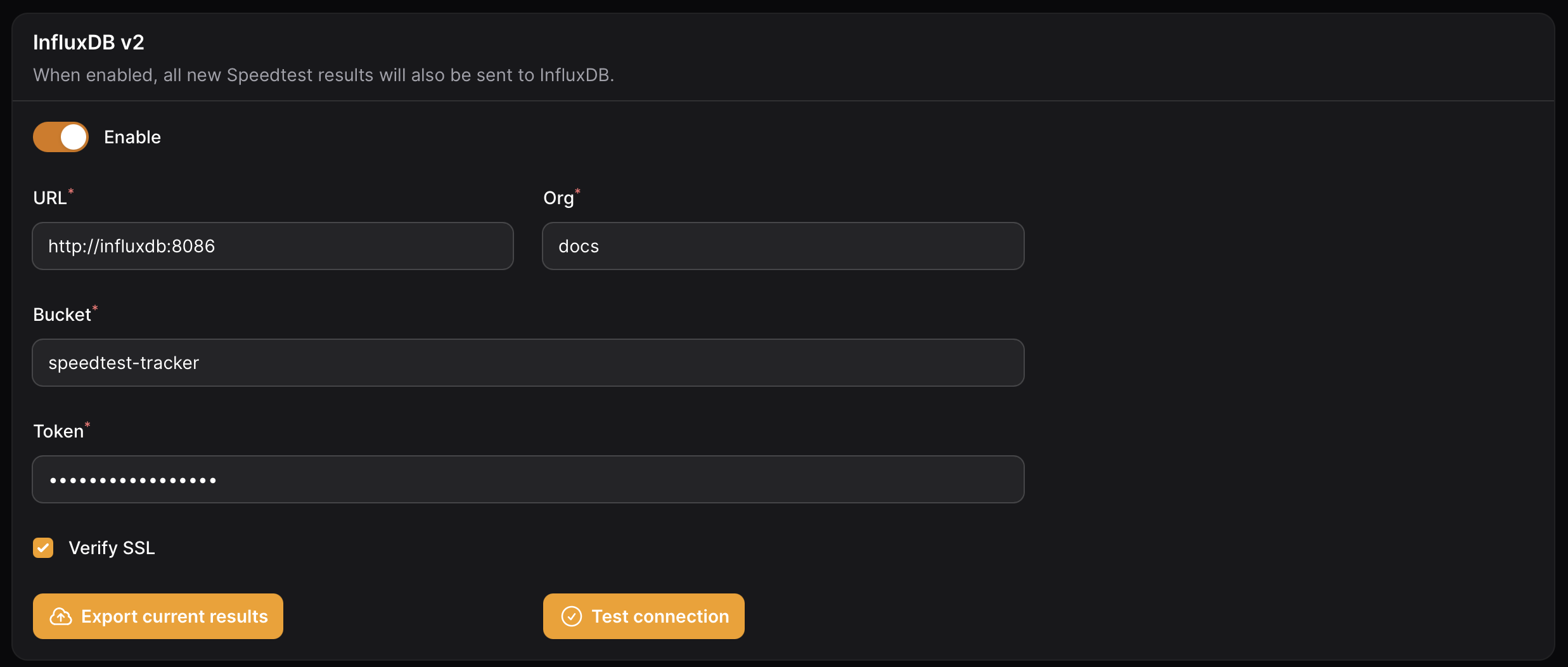
To configure Speedtest Tracker to send results to InfluxDB, set the following settings.

<table><thead><tr><th width="127.33333333333331">Name</th><th width="206">Default</th><th>Description</th></tr></thead><tbody><tr><td>URL</td><td><code>blank</code></td><td>FQDN or IP address to the InfluxDB2 instance</td></tr><tr><td>Org</td><td><code>blank</code></td><td>Organization on which you created your bucket in</td></tr><tr><td>Bucket</td><td><code>speedtest-tracker</code></td><td>The name of the bucket you created in your org</td></tr><tr><td>Token</td><td><code>blank</code></td><td>API token that has access to write to the org and bucket listed above</td></tr></tbody></table>

<figure><img src="https://3367574858-files.gitbook.io/~/files/v0/b/gitbook-x-prod.appspot.com/o/spaces%2Fvtb3s6TB12XY9iIx8YyJ%2Fuploads%2Fgit-blob-6661161e11fa350e33ee4a8533bd11f8720012a4%2Finfluxdbv2_settings.png?alt=media" alt=""><figcaption><p>Influxdb v2 Settings</p></figcaption></figure>

If you have a history of results, you can use the `Export current results` feature to export all data to InfluxDB.

### Grafana Dashboard

You can use this community made Grafana Dashboard to visualize your data.

{% embed url="<https://github.com/masterwishx/Speedtest-Tracker-v2-InfluxDBv2>" %}

### Data pattern

The Speedtest Tracker exports data in two categories: `Tag` and `Field`. Tags are used for filtering, while fields are used for displaying the data.

<table><thead><tr><th>Name</th><th>Data Type</th><th width="100"></th></tr></thead><tbody><tr><td><code>result_id</code></td><td><code>String</code></td><td><code>Tag</code></td></tr><tr><td><code>external_ip</code></td><td><code>String</code></td><td><code>Tag</code></td></tr><tr><td><code>isp</code></td><td><code>String</code></td><td><code>Tag</code></td></tr><tr><td><code>service</code></td><td><code>String</code></td><td><code>Tag</code></td></tr><tr><td><code>server_id</code></td><td><code>String</code></td><td><code>Tag</code></td></tr><tr><td><code>server_name</code></td><td><code>String</code></td><td><code>Tag</code></td></tr><tr><td><code>server_country</code></td><td><code>String</code></td><td><code>Tag</code></td></tr><tr><td><code>server_location</code></td><td><code>String</code></td><td><code>Tag</code></td></tr><tr><td><code>healthy</code></td><td><code>String</code></td><td><code>Tag</code></td></tr><tr><td><code>status</code></td><td><code>String</code></td><td><code>Tag</code></td></tr><tr><td><code>scheduled</code></td><td><code>String</code></td><td><code>Tag</code></td></tr><tr><td><code>download</code></td><td><code>init</code></td><td><code>Field</code></td></tr><tr><td><code>upload</code></td><td><code>init</code></td><td><code>Field</code></td></tr><tr><td><code>ping</code></td><td><code>float</code></td><td><code>Field</code></td></tr><tr><td><code>download_bits</code></td><td><code>int</code></td><td><code>Field</code></td></tr><tr><td><code>upload_bits</code></td><td><code>int</code></td><td><code>Field</code></td></tr><tr><td><code>download_jitter</code></td><td><code>float</code></td><td><code>Field</code></td></tr><tr><td><code>upload_jitter</code></td><td><code>float</code></td><td><code>Field</code></td></tr><tr><td><code>ping_jitter</code></td><td><code>float</code></td><td><code>Field</code></td></tr><tr><td><code>download_latency_avg</code></td><td><code>float</code></td><td><code>Field</code></td></tr><tr><td><code>download_latency_high</code></td><td><code>float</code></td><td><code>Field</code></td></tr><tr><td><code>download_latency_low</code></td><td><code>float</code></td><td><code>Field</code></td></tr><tr><td><code>upload_latency_avg</code></td><td><code>float</code></td><td><code>Field</code></td></tr><tr><td><code>upload_latency_high</code></td><td><code>float</code></td><td><code>Field</code></td></tr><tr><td><code>upload_latency_low</code></td><td><code>float</code></td><td><code>Field</code></td></tr><tr><td><code>packet_loss</code></td><td><code>float</code></td><td><code>Field</code></td></tr></tbody></table>


# Prometheus

After each test, Speedtest Tracker exposes the metrics for Prometheus to scrape. For long term storage or custom visualizations.

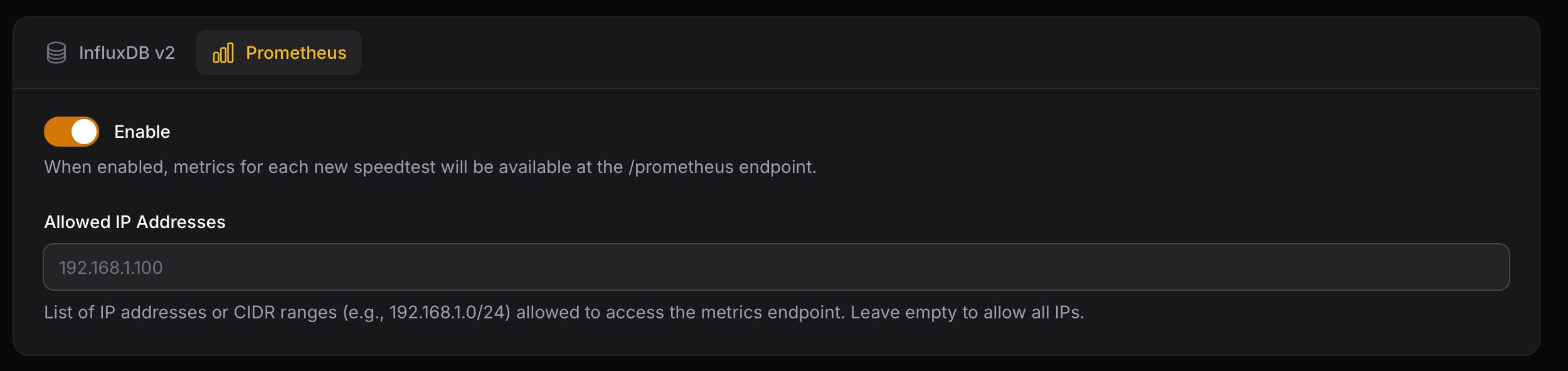
### Allowed IPs

You can configure the Prometheus endpoint so it’s only accessible from specific IP addresses or networks. This can include single IPs or entire CIDR ranges.

<figure><img src="https://3367574858-files.gitbook.io/~/files/v0/b/gitbook-x-prod.appspot.com/o/spaces%2Fvtb3s6TB12XY9iIx8YyJ%2Fuploads%2Fgit-blob-a4d97fb4b159850fc5b9829afdfbeed21657a9b9%2Fprometheus_settings.png?alt=media" alt=""><figcaption></figcaption></figure>

### Grafana Dashboard

You can use this community made Grafana Dashboard to visualize your data.

{% embed url="<https://github.com/CrazyWolf13/Speedtest-Tracker-Prometheus>" %}

### Data pattern

Speedtest Tracker exports data in two categories: labels and metrics. Labels are used for filtering, while metrics are used for displaying data.

<table><thead><tr><th>Name</th><th width="100"></th></tr></thead><tbody><tr><td><code>app_name</code></td><td><code>label</code></td></tr><tr><td><code>isp</code></td><td><code>label</code></td></tr><tr><td><code>server_id</code></td><td><code>label</code></td></tr><tr><td><code>server_name</code></td><td><code>label</code></td></tr><tr><td><code>server_country</code></td><td><code>label</code></td></tr><tr><td><code>server_location</code></td><td><code>label</code></td></tr><tr><td><code>healthy</code></td><td><code>label</code></td></tr><tr><td><code>status</code></td><td><code>label</code></td></tr><tr><td><code>scheduled</code></td><td><code>label</code></td></tr><tr><td><code>download_bytes</code></td><td><code>Metric</code></td></tr><tr><td><code>upload_bytes</code></td><td><code>Metric</code></td></tr><tr><td><code>ping</code></td><td><code>Metric</code></td></tr><tr><td><code>download_bits</code></td><td><code>Metric</code></td></tr><tr><td><code>upload_bits</code></td><td><code>Metric</code></td></tr><tr><td><code>download_jitter</code></td><td><code>Metric</code></td></tr><tr><td><code>upload_jitter</code></td><td><code>Metric</code></td></tr><tr><td><code>ping_jitter</code></td><td><code>Metric</code></td></tr><tr><td><code>download_latency_avg</code></td><td><code>Metric</code></td></tr><tr><td><code>download_latency_high</code></td><td><code>Metric</code></td></tr><tr><td><code>download_latency_low</code></td><td><code>Metric</code></td></tr><tr><td><code>upload_latency_avg</code></td><td><code>Metric</code></td></tr><tr><td><code>upload_latency_high</code></td><td><code>Metric</code></td></tr><tr><td><code>upload_latency_low</code></td><td><code>Metric</code></td></tr><tr><td><code>packet_loss</code></td><td><code>Metric</code></td></tr></tbody></table>

### Prometheus Scrape Config

Below is an example Prometheus scrape configuration:

```yaml
scrape_configs:
  - job_name: 'speedtest-tracker'
    scrape_interval: 60s # Adjust to your set schedule
    scrape_timeout: 10s
    metrics_path: /prometheus
    static_configs:
      - targets: ['speedtest-tracker.local']
```


# Notifications

{% hint style="warning" %}
Database, Mail and Webhook notifications are considered "core" channels. We're currently working on integrating Apprise and all other notification channels should be considered deprecated.
{% endhint %}


# Apprise

Apprise provides a unified notification channel that lets you send alerts to numerous services—like Discord, Pushover, and Ntfy as well as many additional platforms

### Why Apprise

Apprise allows the application to sent notifications to a wide variety of services. It let us focus on features instead of maintaining X number of notification channels. Essentially helping us cut down on maintenance/feature requests.

### Apprise Server

{% hint style="info" %}
We don't offer support on setting up Apprise, incase of any problems with the Apprise Container please reach out to the Apprise team.
{% endhint %}

To use Apprise, you’ll need to set up your own Apprise instance. This container isn’t created automatically, so make sure to include it in your deployment. See the Apprise [Github Repo](https://github.com/caronc/apprise-api) for the setup instructions. On the notification page you will need to define the location of your Apprise instance. Make sure this instance is reachable for the Speedtest Tracker.

### Notification Channels

Notification channels are the formatted URLs used by Apprise to send notifications to various services. Refer to the [Apprise documentation](https://github.com/caronc/apprise?tab=readme-ov-file#supported-notifications) for a full list of supported channels and their required formats. You can add as many different channels as you wish. The notifications will be sent to all of them.

### Tips and Tricks

#### Format

By default the format used for message is `markdown` This allows us to do some formatting on the message like bold text etc.

#### Preview Images

By default Apprise does not allow preview images for URLs. This is an default setting on the Apprise instance. Depending on the service used you can override this settings in the notification channel URL. Check the Apprise documentation to see if your service support this and how to set it.

### Triggers

<table><thead><tr><th width="237">Name</th><th>Description</th></tr></thead><tbody><tr><td>on every scheduled speedtest run</td><td>On each successful scheduled speedtest a notification will be send to the application.</td></tr><tr><td>on threshold failures for scheduled speedtests</td><td>On any absolute threshold failure for scheduled speedtest a notification will be send to the application.</td></tr></tbody></table>


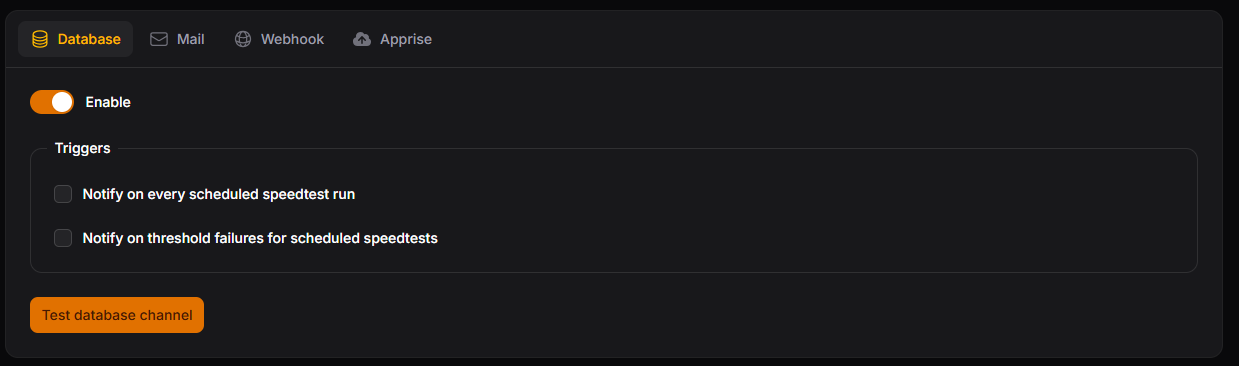
# Database

Notifications sent to the database channel will show up under the 🔔 icon in the header of the application.

<figure><img src="https://3367574858-files.gitbook.io/~/files/v0/b/gitbook-x-prod.appspot.com/o/spaces%2Fvtb3s6TB12XY9iIx8YyJ%2Fuploads%2Fgit-blob-68116c550f6f035df101adc00d17291733614b6f%2Fdb_notification.png?alt=media" alt=""><figcaption><p>Database settings</p></figcaption></figure>

### Triggers

<table><thead><tr><th width="237">Name</th><th>Description</th></tr></thead><tbody><tr><td>on every scheduled speedtest run</td><td>On each successful scheduled speedtest a notification will be send to the application.</td></tr><tr><td>on threshold failures for scheduled speedtests</td><td>On any absolute threshold failure for scheduled speedtest a notification will be send to the application.</td></tr></tbody></table>


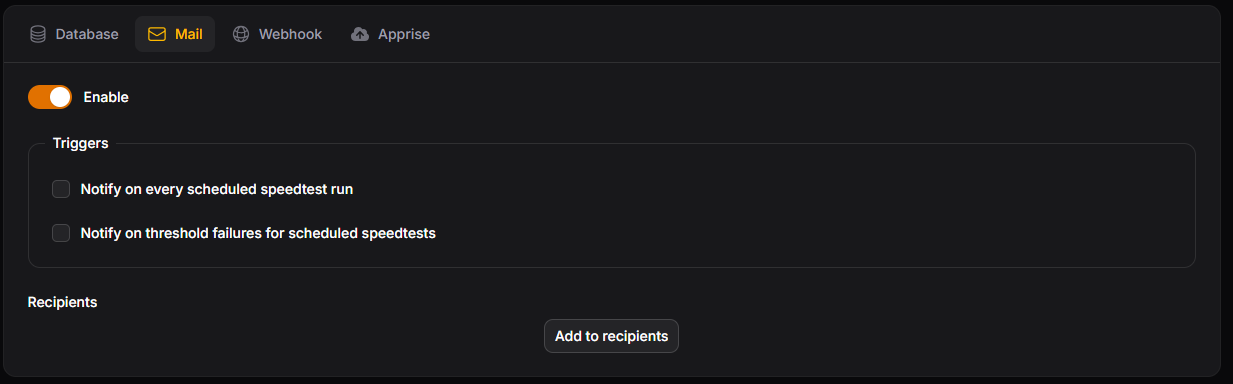
# Mail

Notifications sent to the mail channel will be emailed to the list of recipients.

<figure><img src="https://3367574858-files.gitbook.io/~/files/v0/b/gitbook-x-prod.appspot.com/o/spaces%2Fvtb3s6TB12XY9iIx8YyJ%2Fuploads%2Fgit-blob-0281abac5f3b05b2cb1c7d628910f1e5bdffb72b%2Fmail_notification.png?alt=media" alt=""><figcaption><p>Mail settings</p></figcaption></figure>

### Setting Up SMTP

Speedtest Tracker uses SMTP mail protocol to send email messages, you can use any service that allows you to send emails via SMTP.

To configure the mail server settings you'll need to update the following variables in your `.env` file or add them to the environment variables passed into the container. When choosing mail scheme both `ssl` and `tls` protocols are supported and you'll want to check with your mail provider for which to use and which port.

{% hint style="warning" %}
Make sure these are not set in both your `.env` file or your `docker-compose.yml` file as that can cause issues.
{% endhint %}

```
MAIL_MAILER=smtp
MAIL_HOST=
MAIL_PORT=
MAIL_USERNAME=
MAIL_PASSWORD=
MAIL_FROM_ADDRESS=
MAIL_FROM_NAME=
```

{% hint style="info" %}
`MAIL_SCHEME` is optional, only use it if you need to define `smtp` or `smtps` otherwise Laravel will determine the scheme based on the port provided.
{% endhint %}

***

### Examples

#### Gmail

1. Go to <https://myaccount.google.com/> and click on the "Security" tab.
2. Under the "How you sign in to Google" section, click on "2-Step Verification".
3. Click on "App passwords".
4. Enter a name for your app password and click "Create". Use this password for the `MAIL_PASSWORD` env variable in the example configuration below.

```
MAIL_MAILER=smtp
MAIL_HOST=smtp.gmail.com
MAIL_PORT=465
MAIL_USERNAME="username@gmail.com"
MAIL_PASSWORD="password"
MAIL_FROM_ADDRESS="username@gmail.com"
MAIL_FROM_NAME="Speedtest Tracker"
```

### Triggers

<table><thead><tr><th width="237">Name</th><th>Description</th></tr></thead><tbody><tr><td>on every scheduled speedtest run</td><td>On each successful scheduled speedtest a notification will be send to the application.</td></tr><tr><td>on threshold failures for scheduled speedtests</td><td>On any absolute threshold failure for scheduled speedtest a notification will be send to the application.</td></tr></tbody></table>

### Recipients

A recipient is any valid email address, you can add one or many recipients that will receive notifications based on the triggers selected.


# Webhook

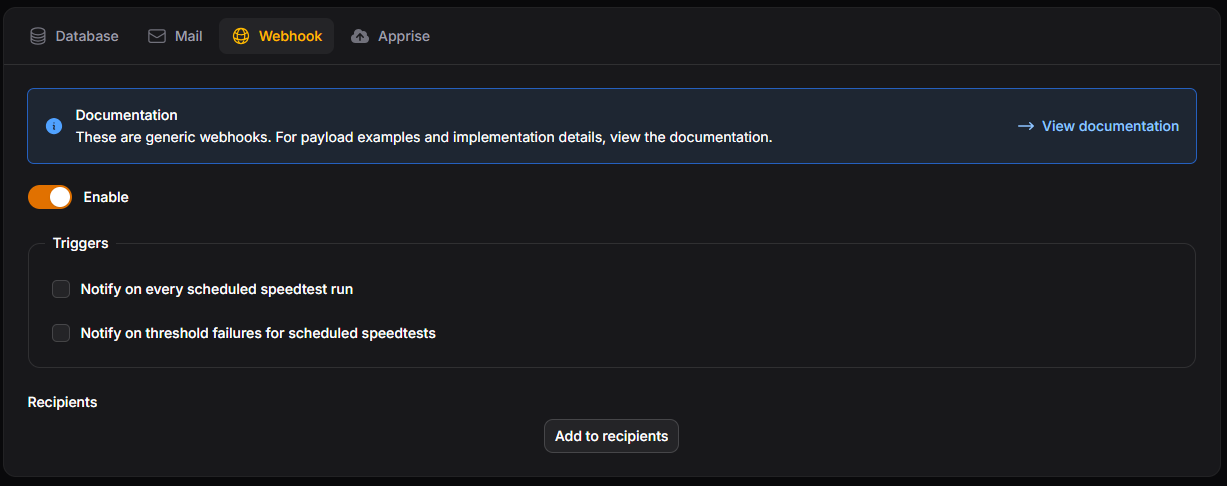
A webhook will send a JSON payload to a receiver of your choice

<figure><img src="https://3367574858-files.gitbook.io/~/files/v0/b/gitbook-x-prod.appspot.com/o/spaces%2Fvtb3s6TB12XY9iIx8YyJ%2Fuploads%2Fgit-blob-04c17833deaa61d01363914ca563fadc176d0787%2Fwebhook_notification.png?alt=media" alt=""><figcaption><p>Webhook settings</p></figcaption></figure>

### Payload

{% tabs %}
{% tab title="Threshold Failure " %}

```json
{
  "result_id": 14,
  "site_name": "Speedtest Tracker",
  "isp": "Speedy Communications",
  "benchmarks": {
    "download": {
      "bar": "min",
      "passed": false,
      "type": "absolute",
      "test_value": 1022,
      "benchmark_value": 2000,
      "unit": "mbps"
    },
    "upload": {
      "bar": "min",
      "passed": false,
      "type": "absolute",
      "test_value": 1018,
      "benchmark_value": 2000,
      "unit": "mbps"
    },
    "ping": {
      "bar": "max",
      "passed": false,
      "type": "absolute",
      "test_value": 3,
      "benchmark_value": 1,
      "unit": "ms"
    }
  },
  "speedtest_url": "https://www.speedtest.net/result/c/1433a2de-eb3c-4a0e-ab29-xxxxxx",
  "url": "http://192.168.1.5/admin/results"
}
```

{% endtab %}

{% tab title="Completed test" %}

```json
{
  "result_id": 17,
  "site_name": "Speedtest Tracker",
  "server_name": "Speedtest",
  "server_id": 52365,
  "status": "completed",
  "isp": "Speedy Communications",
  "ping": 3,
  "download": 1026,
  "upload": 1012,
  "packet_loss": 0,
  "speedtest_url": "https://www.speedtest.net/result/c/288aa4aa-a52e-493c-8d60-xxxx",
  "url": "http://192.168.1.5/admin/results"
}
```

{% endtab %}
{% endtabs %}

### Triggers

<table><thead><tr><th width="237">Name</th><th>Description</th></tr></thead><tbody><tr><td>on every scheduled speedtest run</td><td>On each successful scheduled speedtest a notification will be send to the application.</td></tr><tr><td>on threshold failures for scheduled speedtests</td><td>On any absolute threshold failure for scheduled speedtest a notification will be send to the application.</td></tr></tbody></table>


# Speedtest Process

Speedtest Tracker uses the [Official Ookla CLI](https://www.speedtest.net/apps/cli) client to execute the speedtest. There a couple of stages the Speedtest Tracker goes through, below explains the process.

{% stepper %}
{% step %}
**Waiting**

The speedtest run request was created but has not been started.
{% endstep %}

{% step %}
**Started**

The speedtest process has been started by a queue worker.
{% endstep %}

{% step %}
**Checking**

The application checks for an internet connection by calling `https://icanhazip.com` .
{% endstep %}

{% step %}
**Skipped \[Optional]**

If you have the `SPEEDTEST_SKIP_IPS` the test will be marked as skipped as the IP returning during `Checking` matches your defined IP.
{% endstep %}

{% step %}
**Running**

The application runs the speedtest by simply running the speedtest command. This command runs the speedtest like another other speedtest and returns the result in json format so the application an easily process it.

```
speedtest -accept-license --accept-gdpr --format=json
```

Or when you have defined a server id:

```
speedtest -accept-license --accept-gdpr --format=json --server-id=YOURSERVERID
```

{% endstep %}

{% step %}
**Failed**

If for various reasons the Ookla CLI returns an error, because the defined server was offline for example the tests is marked as failed. As well when the `Checking` stage fails when there is no internet.
{% endstep %}

{% step %}
**Benchmarking**

When you have thresholds set this step will evaluate the results against the threshold to determine if the test was healthy or not.
{% endstep %}

{% step %}
**Completed**

This is the end stage of the process when every step is completed the test is marked as such.
{% endstep %}
{% endstepper %}


# Proxies

Installation guides for when using Reverse Proxies. These configurations are provided by the community.

```
```


# Cloudflare Tunnel (Zero Trust)

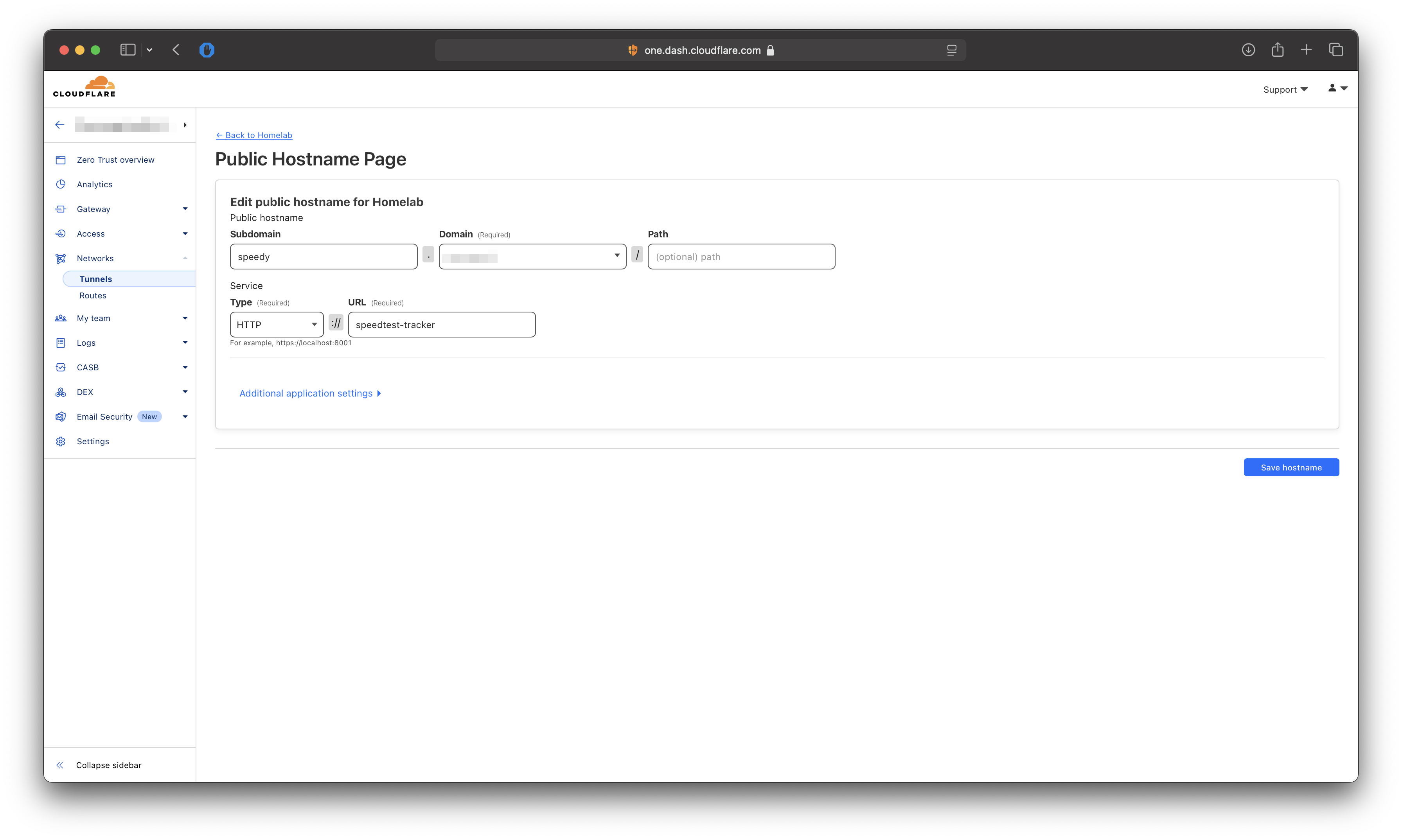
A [Cloudflare tunnel ](https://www.cloudflare.com/nl-nl/products/tunnel/)can be used as a reverse proxy in front of Speedtest Tracker when you want to expose the application publicly without exposing your IP address.

### Cloudflare Tunnel Configuration

* Update your `APP_URL` to the public URL you are going to use and restart the service.
* In the Cloudflare panel go to **Zero Trust** -> **Networks** -> **Tunnels** page.
* For the tunnel you want to add the Speedtest Tracker to click on **Edit** or add a new tunnel.
* Go to **Public Hostname.**
* Click on **Add a public hostname.**
* Fill in the following fields.
  * **Subdomain:** The subdomain you want to access the Speedtest Tracker on.
  * **Domain:** The domain you want to access the Speedtest Tracker on.
  * **Type:** Connection type to the Speedtest Tracker (http/https)
    * When choosing HTTPS you will need to disable the TLS verification under `Additional application settings -> TLS -> No TLS Verify`
  * **URL:** The URL to access the Speedtest Tracker. This can be either the IP Address:Port or the container\_name:port.

{% hint style="info" %}
When using the container\_name Cloudflare Tunnel and Speedtest Tracker need to be on the same Docker network.
{% endhint %}

<figure><img src="https://3367574858-files.gitbook.io/~/files/v0/b/gitbook-x-prod.appspot.com/o/spaces%2Fvtb3s6TB12XY9iIx8YyJ%2Fuploads%2Fgit-blob-80eafb393b66d4d02f8821d4e2f2fa89d970553e%2Fcf-tunnel.png?alt=media" alt=""><figcaption></figcaption></figure>

### Docker Configuration

Docker-Compose:

```yaml
services:
    speedtest-tracker:
        container_name: speedtest-tracker
        environment:
            - PUID=1000
            - PGID=1000
            - APP_KEY=
            - DB_CONNECTION=sqlite
            - SPEEDTEST_SCHEDULE=
            - SPEEDTEST_SERVERS=
            - PRUNE_RESULTS_OLDER_THAN=
            - CHART_DATETIME_FORMAT= 
            - DATETIME_FORMAT=
            - APP_TIMEZONE=
            - APP_URL=https://speedtest.yourdomain.com # Change this to your domain name
            - ASSET_URL=https://speedtest.yourdomain.com # Change this to your domain name
        volumes:
            - /path/to/data:/config
            - /path/to-custom-ssl-keys:/config/keys
        image: lscr.io/linuxserver/speedtest-tracker:latest
        restart: unless-stopped
```

{% hint style="info" %}
Depending on your Cloudflare Tunnel configuration, you need to make sure the Speedtest Tracker and Cloudflare Tunnel are on the same docker network.
{% endhint %}

<table><thead><tr><th width="291">Added compose part</th><th>Description</th></tr></thead><tbody><tr><td><code>APP_URL</code></td><td>URL you want to access the WebGui on.</td></tr><tr><td><code>ASSET_URL</code></td><td>URL used for loading all the needed assets. Need to be the same as the <code>APP_URL</code>.</td></tr></tbody></table>


# Traefik

[Traefik](https://traefik.io) can be used as a Reverse Proxy in front of Speedtest Tracker when you want to expose the Dashboard publicly with a trusted certificate. You will need at add the `APP_URL` environment and needed labels to the docker compose have Traefik apply the certificate and routing.

Docker-Compose:

```yaml
services:
    speedtest-tracker:
        container_name: speedtest-tracker
        environment:
            - PUID=1000
            - PGID=1000
            - APP_KEY=
            - DB_CONNECTION=sqlite
            - SPEEDTEST_SCHEDULE=
            - SPEEDTEST_SERVERS=
            - PRUNE_RESULTS_OLDER_THAN=
            - CHART_DATETIME_FORMAT= 
            - DATETIME_FORMAT=
            - APP_TIMEZONE=
            - APP_URL=https://speedtest.yourdomain.com # Change this to your domain name
            - ASSET_URL=https://speedtest.yourdomain.com # Change this to your domain name
        volumes:
            - /path/to/data:/config
            - /path/to-custom-ssl-keys:/config/keys
        labels:
            - "traefik.enable=true"
            - "traefik.http.routers.speedtest-tracker.rule=Host(`speedtest.yourdomain.com`)"
            - "traefik.http.routers.speedtest-tracker.entrypoints=websecure"
            - "traefik.http.routers.speedtest-tracker.tls=true"
            - "traefik.http.routers.speedtest-tracker.tls.certresolver=yourresolver"
            - "traefik.http.services.speedtest-tracker.loadbalancer.server.port=80"
        image: lscr.io/linuxserver/speedtest-tracker:latest
        restart: unless-stopped
```

{% hint style="info" %}
Depending on your Traefik configuration, you need to make sure the Speedtest Tracker and Traefik are on the same docker network.
{% endhint %}

<table><thead><tr><th width="291">Added compose part</th><th>Description</th></tr></thead><tbody><tr><td><code>APP_URL</code></td><td>URL you want to access the WebGui on.</td></tr><tr><td><code>ASSET_URL</code></td><td>URL used for loading all the needed assets. Need to be the same as the <code>APP_URL</code>.</td></tr><tr><td><code>traefik.enable=true</code></td><td>Explicitly tell Traefik to expose this container</td></tr><tr><td><code>traefik.http.routers.speedtest-tracker.rule=Host(`speedtest.yourdomain.com`)</code></td><td>The domain the service will respond to</td></tr><tr><td><code>traefik.http.routers.speedtest-tracker.entrypoints=websecure</code></td><td>Allow request only from the predefined entry point</td></tr><tr><td><code>traefik.http.routers.speedtest-tracker.tls=true</code></td><td>When a TLS section is specified, it instructs Traefik that the current router is dedicated to HTTPS requests only</td></tr><tr><td><code>traefik.http.routers.speedtest-tracker.tls.certresolver=yourresolver</code></td><td>Explicitly tell Traefik which Certificate provider to use matching your Traefik configuration</td></tr><tr><td><code>traefik.http.services.speedtest-tracker.loadbalancer.server.port=80</code></td><td>Explicitly tell Traefik port to use to connect to the container</td></tr></tbody></table>


# Tailscale

[Tailscale](https://tailscale.com) Mesh VPN service can be used as an sidecar container to access the Speedtest Tracker within your Tailnet on its own MagicDNS name.

## Tailscale Auth key

Generate an auth key for tailscale so the docker container can access your tailnet.

1. Open the [**Keys**](https://login.tailscale.com/admin/settings/keys) page of the admin console.
2. Select **Generate auth key**.
3. Fill out the form fields to specify characteristics about the auth key, such as the description, whether its reusable, when it expires, and device settings.
4. Select **Generate key**.

Save this Auth Key. We will need this later on.

## Docker Configuration

Docker-Compose:

```yaml
services:
  tailscale-speedtest:
    image: tailscale/tailscale
    container_name: tailscale_speedtest-tracker
    hostname: speedtest
    environment:
      - TS_AUTHKEY=
      - TS_STATE_DIR=/var/lib/tailscale
      - TS_USERSPACE=false
    volumes:
      - ./tailscale-traefik/state:/var/lib/tailscale
      - /dev/net/tun:/dev/net/tun
    cap_add:
      - net_admin
      - sys_module
    restart: unless-stopped

  speedtest-tracker:
    container_name: speedtest-tracker-tailscale
    depends_on:
      - tailscale-speedtest
    network_mode: service:tailscale-speedtest
    environment:
        - PUID=1000
        - PGID=1000
        - APP_KEY=
        - DB_CONNECTION=sqlite
        - SPEEDTEST_SCHEDULE=
        - SPEEDTEST_SERVERS=
        - PRUNE_RESULTS_OLDER_THAN=
        - CHART_DATETIME_FORMAT= 
        - DATETIME_FORMAT=
        - APP_TIMEZONE=
        - APP_URL=https://speedtest.yourtailnet.ts.net # Change this to your MagicDNS name
        - ASSET_URL=https://speedtest.yourtailnet.ts.net # Change this to your MagicDNS name
    volumes:
        - /path/to/data:/config
        - /path/to-custom-ssl-keys:/config/keys
    image: lscr.io/linuxserver/speedtest-tracker:latest
    restart: unless-stopped
```

| Added compose part | Description                                                                             |
| ------------------ | --------------------------------------------------------------------------------------- |
| `APP_URL`          | URL you want to access the WebGui on. This will need to be the Tailscale Magic DNS name |
| `ASSET_URL`        | URL used for loading all the needed assets. Need to be the same as the `APP_URL`.       |
| `TS_AUTHKEY`       | Auth key for Tailscale                                                                  |


# Nginx

[Nginx](https://nginx.org) can be used as a Reverse Proxy in front of Speedtest Tracker to expose the Dashboard publicly with a trusted certificate.

First, you will need to add the `APP_URL` and `ASSET_URL` environment variables to your `docker-compose.yml`.

```yaml
services:
    speedtest-tracker:
        container_name: speedtest-tracker
        environment:
            - PUID=1000
            - PGID=1000
            - APP_KEY=
            - DB_CONNECTION=sqlite
            - SPEEDTEST_SCHEDULE=
            - SPEEDTEST_SERVERS=
            - PRUNE_RESULTS_OLDER_THAN=
            - CHART_DATETIME_FORMAT= 
            - DATETIME_FORMAT=
            - APP_TIMEZONE=
            # Change both below to the desired domain
            - APP_URL=https://speedtest.yourdomain.com
            - ASSET_URL=https://speedtest.yourdomain.com
        volumes:
            - /path/to/data:/config
            - /path/to-custom-ssl-keys:/config/keys
        image: lscr.io/linuxserver/speedtest-tracker:latest
        restart: unless-stopped
```

Next, you will need to configure nginx to proxy to the Speedtest Tracker app.

{% hint style="info" %}
Depending on how you generate your SSL certificates and how you configure your Docker network, you may need to adjust the `ssl_` and `proxy_pass` values.
{% endhint %}

```nginx
server {
        listen 80;
        server_name speedtest.yourdomain.com;
        return 301 https://$host$request_uri;
}

server {
        listen 443 ssl;
        server_name speedtest.yourdomain.com;

        ssl_certificate /etc/letsencrypt/live/speedtest.yourdomain.com/fullchain.pem;
        ssl_certificate_key /etc/letsencrypt/live/speedtest.yourdomain.com/privkey.pem;

        ssl_protocols TLSv1.2;
        ssl_ciphers
'ECDHE-RSA-AES128-GCM-SHA256:ECDHE-ECDSA-AES128-GCM-SHA256:ECDHE-RSA-AES256-GCM-SHA384:ECDHE-ECDSA-AES256-GCM-SHA384:DHE-RSA-AES128-GCM-SHA256:DHE-DSS-AES128-GCM-SHA256:kEDH+AESGCM:ECDHE-RSA-AES128-SHA256:ECDHE-ECDSA-AES128-SHA256:ECDHE-RSA-AES128-SHA:ECDHE-ECDSA-AES128-SHA:ECDHE-RSA-AES256-SHA384:ECDHE-ECDSA-AES256-SHA384:ECDHE-RSA-AES256-SHA:ECDHE-ECDSA-AES256-SHA:DHE-RSA-AES128-SHA256:DHE-RSA-AES128-SHA:DHE-DSS-AES128-SHA256:DHE-RSA-AES256-SHA256:DHE-DSS-AES256-SHA:DHE-RSA-AES256-SHA:AES128-GCM-SHA256:AES256-GCM-SHA384:AES128-SHA256:AES256-SHA256:AES128-SHA:AES256-SHA:AES:CAMELLIA:DES-CBC3-SHA:!aNULL:!eNULL:!EXPORT:!DES:!RC4:!MD5:!PSK:!aECDH:!EDH-DSS-DES-CBC3-SHA:!EDH-RSA-DES-CBC3-SHA:!KRB5-DES-CBC3-SHA';
        ssl_prefer_server_ciphers on;
        ssl_session_cache shared:SSL:10m;
        ssl_session_timeout 10m;
        ssl_dhparam /etc/ssl/certs/dhparam.pem;

        add_header Strict-Transport-Security "max-age=31536000;includeSubdomains";

        location / {
                proxy_set_header X-Forwarded-Host $host;
                proxy_set_header X-Forwarded-Server $host;
                proxy_set_header X-Forwarded-For $proxy_add_x_forwarded_for;
                proxy_set_header X-Forwarded-Proto $scheme;

                proxy_pass http://speedtest-container-host:80;
        }
}
```


# Commands

Commands offer additional functionality like providing debug information and performing maintenance tasks.

Commands are intended to be run from within the CLI of the container and from the application's root directory. The application directory is located at: `/app/www`

When using the commands below they should be prefixed with `php artisan`, so the `about` command will look like `php artisan about`.

### Core commands

Core commands exist at the framework level and might be extended to provide additional functionality.

<table><thead><tr><th width="261">Command</th><th>Description</th></tr></thead><tbody><tr><td><code>about</code></td><td>Provides information on the current version of Speedtest Tracker, Laravel and Filament.</td></tr></tbody></table>

### Application commands

Application commands are built to extend Speedtest Tracker's functionality from the CLI.

<table><thead><tr><th width="261">Command</th><th>Description</th></tr></thead><tbody><tr><td><code>app:ookla-list-servers</code></td><td>Get a list of local Ookla speedtest servers.</td></tr><tr><td><code>app:user-change-role</code></td><td>Change the role for a user.</td></tr><tr><td><code>app:user-reset-password</code></td><td>Change the password for a user.</td></tr></tbody></table>

### Maintenance commands

Maintenance commands help fix issues that might crop up over time.

<table><thead><tr><th width="261">Command</th><th>Description</th></tr></thead><tbody><tr><td><code>app:result-fix-statuses</code></td><td>Reviews the data payload of each result and corrects the status attribute.</td></tr></tbody></table>


# Data Dictionary

### Tables

#### Results

<table><thead><tr><th width="181.66666666666666">Field</th><th width="188">Type</th><th>Description</th></tr></thead><tbody><tr><td><code>id</code></td><td>primary key</td><td></td></tr><tr><td><code>service</code></td><td>string</td><td>Service user to run the speedtest.</td></tr><tr><td><code>ping</code></td><td>double</td><td>As milliseconds</td></tr><tr><td><code>download</code></td><td>unsigned big int</td><td>As bytes</td></tr><tr><td><code>upload</code></td><td>unsigned big int</td><td>As bytes</td></tr><tr><td><code>comments</code></td><td>text</td><td>User added comments.</td></tr><tr><td><code>data</code></td><td>json</td><td>The raw response from the speedtest.</td></tr><tr><td><code>benchmarks</code></td><td>json</td><td>Captures the speedtest's benchmarks at run time.</td></tr><tr><td><code>healthy</code></td><td>boolean</td><td>Indicates if the speedtest was healthy compared to the benchmark.</td></tr><tr><td><code>status</code></td><td>string</td><td><ul><li><strong>Completed</strong> - a speedtest that ran successfully.</li><li><strong>Failed</strong> - a speedtest that failed to run successfully.</li><li><strong>Started</strong> - a speedtest that has been started but has not finished running.</li><li><strong>Skipped</strong> - a speedtest that was skipped. See message for more details.</li></ul></td></tr><tr><td><code>scheduled</code></td><td>boolean</td><td>Was the result scheduled.</td></tr><tr><td><code>created_at</code></td><td>timestamp</td><td>When the record was created.</td></tr><tr><td><code>updated_at</code></td><td>timestamp</td><td>When the record was last updated.</td></tr></tbody></table>


# Embed Dashboard

Embed the public dashboard in Home Assistant or other dashboards and websites

{% hint style="warning" %}
As of `v0.14.2` this feature has been removed, see the issue below for details.
{% endhint %}

<https://github.com/alexjustesen/speedtest-tracker/issues/1024>


# Health Check

Using the health check URL you can test to make sure the application is up and working. The URL `/api/healthcheck` will response with a 200 HTTP response code and a JSON message.

### Health Check Endpoint

```bash
curl APP_URL/api/healthcheck
```

You can also add this to your Docker Compose file so the Docker service can monitor that the container has started successfully.

```yaml
healthcheck:
    test: curl -fSs APP_URL/api/healthcheck | jq -r .message || exit 1
    interval: 10s
    retries: 3
    start_period: 30s
    timeout: 10s
```

### Response

```json
Speedtest Tracker is running!
```


# Community Projects

This page lists community projects that use SpeedTest Tracker as a base for their own projects. If you have a project that you would like to share, please submit a pull request to add it to this list.

## Projects

* [SpeedtestTrackerBot](https://github.com/josephistired/SpeedtestTrackerBot) — SpeedtestTrackerBot is a lightweight Discord bot that integrates with the Speedtest Tracker API to provide real-time network performance data via slash commands like `/latest`, `/stats`, `/result`, and `/run`. It's easy to set up with Docker or systemd.
* Stream Deck - Use the API to show the most recent result on your Stream Deck. Shoutout to [MartynKeigher](https://github.com/MartynKeigher) on GitHub for [providing](https://github.com/alexjustesen/speedtest-tracker/issues/1191) these instructions.
* [Speedtest Tracker App (iOS)](https://apps.apple.com/us/app/speedtest-tracker-app/id6755368150) - Speedtest Tracker App is a native iOS client for Speedtest Tracker, which integrates with its API to allow you to perform actions or see stats straight from your phone.


# Authorization

A "Bearer Token" is required to authenticate into the API, you can generate tokens for your user account on `/admin/api-tokens`.

### Token Abilities

Each token is provisioned with one or more abilities. When calling an endpoint, the token must include the ability required by that endpoint

| Abilities     | Description                     |
| ------------- | ------------------------------- |
| Read Results  | Allows token to read results.   |
| Run Speedtest | Allows token to run speedtests. |
| List servers  | Allows token to list servers.   |


# Responses


# Results

Endpoints for accessing and filtering speedtest results. Requires API token with `results:read` scope.

## GET /api/v1/results

> List all results

```json
{"openapi":"3.0.0","info":{"title":"Speedtest Tracker API","version":"1.0.0"},"tags":[{"name":"Results","description":"Endpoints for accessing and filtering speedtest results. Requires API token with `results:read` scope."}],"paths":{"/api/v1/results":{"get":{"tags":["Results"],"summary":"List all results","operationId":"listResults","parameters":[{"$ref":"#/components/parameters/AcceptHeader"},{"name":"per.page","in":"query","description":"Number of results per page","required":false,"schema":{"type":"integer","default":25,"maximum":500,"minimum":1}},{"name":"filter[ping]","in":"query","description":"Filter by ping value (supports operators like >=, <=, etc.)","required":false,"schema":{"type":"number"}},{"name":"filter[download]","in":"query","description":"Filter by download speed (supports operators like >=, <=, etc.)","required":false,"schema":{"type":"integer"}},{"name":"filter[upload]","in":"query","description":"Filter by upload speed (supports operators like >=, <=, etc.)","required":false,"schema":{"type":"integer"}},{"name":"filter[healthy]","in":"query","description":"Filter by healthy status","required":false,"schema":{"type":"boolean"}},{"name":"filter[status]","in":"query","description":"Filter by status","required":false,"schema":{"type":"string"}},{"name":"filter[scheduled]","in":"query","description":"Filter by scheduled status","required":false,"schema":{"type":"boolean"}},{"name":"filter[start_at]","in":"query","description":"Filter results created on or after this date (alias for created_at>=)","required":false,"schema":{"type":"string","format":"date"}},{"name":"filter[end_at]","in":"query","description":"Filter results created on or before this date (alias for created_at<=)","required":false,"schema":{"type":"string","format":"date"}},{"name":"sort","in":"query","description":"Sort results by field (prefix with - for descending)","required":false,"schema":{"type":"string","enum":["ping","-ping","download","-download","upload","-upload","created_at","-created_at","updated_at","-updated_at"]}}],"responses":{"200":{"description":"OK","content":{"application/json":{"schema":{"$ref":"#/components/schemas/ResultsCollection"}}}},"401":{"description":"Unauthenticated","content":{"application/json":{"schema":{"$ref":"#/components/schemas/UnauthenticatedError"}}}},"403":{"description":"Forbidden","content":{"application/json":{"schema":{"$ref":"#/components/schemas/ForbiddenError"}}}},"406":{"description":"Not Acceptable - Missing or invalid Accept header","content":{"application/json":{"schema":{"$ref":"#/components/schemas/NotAcceptableError"}}}},"422":{"description":"Validation failed","content":{"application/json":{"schema":{"$ref":"#/components/schemas/ValidationError"}}}}}}}},"components":{"parameters":{"AcceptHeader":{"name":"Accept","in":"header","description":"Must be \"application/json\" - this API only accepts and returns JSON","required":true,"schema":{"type":"string","default":"application/json"}}},"schemas":{"ResultsCollection":{"description":"Paginated list of Speedtest results","properties":{"data":{"description":"Array of result objects","type":"array","items":{"$ref":"#/components/schemas/Result"}},"links":{"properties":{"first":{"type":"string"},"last":{"type":"string"},"prev":{"type":"string","nullable":true},"next":{"type":"string","nullable":true}},"type":"object","additionalProperties":false},"meta":{"properties":{"current_page":{"type":"integer"},"from":{"type":"integer"},"last_page":{"type":"integer"},"links":{"type":"array","items":{"properties":{"url":{"type":"string","nullable":true},"label":{"type":"string"},"active":{"type":"boolean"}},"type":"object","additionalProperties":false}},"path":{"type":"string"},"per.page":{"type":"integer"},"to":{"type":"integer"},"total":{"type":"integer"}},"type":"object","additionalProperties":false}},"type":"object","additionalProperties":false},"Result":{"description":"Speedtest result entry","properties":{"id":{"type":"integer"},"service":{"type":"string"},"ping":{"type":"number"},"download":{"type":"integer"},"upload":{"type":"integer"},"download_bits":{"type":"integer"},"upload_bits":{"type":"integer"},"download_bits_human":{"type":"string"},"upload_bits_human":{"type":"string"},"benchmarks":{"type":"array","items":{"type":"object"},"nullable":true},"healthy":{"type":"boolean","nullable":true},"status":{"type":"string"},"scheduled":{"type":"boolean"},"comments":{"type":"string","nullable":true},"data":{"description":"Nested speedtest data payload","properties":{"isp":{"type":"string"},"ping":{"properties":{"low":{"type":"number","format":"float"},"high":{"type":"number","format":"float"},"jitter":{"type":"number","format":"float"},"latency":{"type":"number","format":"float"}},"type":"object"},"type":{"type":"string"},"result":{"properties":{"id":{"type":"string"},"url":{"type":"string","format":"uri"},"persisted":{"type":"boolean"}},"type":"object"},"server":{"properties":{"id":{"type":"integer"},"ip":{"type":"string","format":"ipv4"},"host":{"type":"string"},"name":{"type":"string"},"port":{"type":"integer"},"country":{"type":"string"},"location":{"type":"string"}},"type":"object"},"upload":{"properties":{"bytes":{"type":"integer"},"elapsed":{"type":"integer"},"latency":{"properties":{"iqm":{"type":"number","format":"float"},"low":{"type":"number","format":"float"},"high":{"type":"number","format":"float"},"jitter":{"type":"number","format":"float"}},"type":"object"},"bandwidth":{"type":"integer"}},"type":"object"},"download":{"properties":{"bytes":{"type":"integer"},"elapsed":{"type":"integer"},"latency":{"properties":{"iqm":{"type":"number","format":"float"},"low":{"type":"number","format":"float"},"high":{"type":"number","format":"float"},"jitter":{"type":"number","format":"float"}},"type":"object"},"bandwidth":{"type":"integer"}},"type":"object"},"interface":{"properties":{"name":{"type":"string"},"isVpn":{"type":"boolean"},"macAddr":{"type":"string","pattern":"^([0-9A-Fa-f]{2}:){5}[0-9A-Fa-f]{2}$"},"externalIp":{"type":"string","format":"ipv4"},"internalIp":{"type":"string","format":"ipv4"}},"type":"object"},"timestamp":{"type":"string","format":"date-time"},"packetLoss":{"type":"number"}},"type":"object"},"created_at":{"type":"string","format":"date-time"},"updated_at":{"type":"string","format":"date-time"}},"type":"object","additionalProperties":false},"UnauthenticatedError":{"description":"Error when user is not authenticated","properties":{"message":{"description":"Unauthenticated error message","type":"string"}},"type":"object"},"ForbiddenError":{"description":"Forbidden error response when user lacks permission","properties":{"message":{"description":"Error message indicating lack of permission","type":"string"}},"type":"object"},"NotAcceptableError":{"description":"Error response when the Accept header is missing or invalid","properties":{"message":{"type":"string"},"error":{"type":"string"}},"type":"object"},"ValidationError":{"description":"Validation failed due to invalid server_id input","properties":{"message":{"description":"Validation failed due to invalid server_id input","type":"string"}},"type":"object"}}}}
```

## GET /api/v1/results/{id}

> Get a single result

```json
{"openapi":"3.0.0","info":{"title":"Speedtest Tracker API","version":"1.0.0"},"tags":[{"name":"Results","description":"Endpoints for accessing and filtering speedtest results. Requires API token with `results:read` scope."}],"paths":{"/api/v1/results/{id}":{"get":{"tags":["Results"],"summary":"Get a single result","operationId":"getResult","parameters":[{"$ref":"#/components/parameters/AcceptHeader"},{"name":"id","in":"path","description":"The ID of the result","required":true,"schema":{"type":"integer"}}],"responses":{"200":{"description":"OK","content":{"application/json":{"schema":{"$ref":"#/components/schemas/ResultResponse"}}}},"401":{"description":"Unauthenticated","content":{"application/json":{"schema":{"$ref":"#/components/schemas/UnauthenticatedError"}}}},"403":{"description":"Forbidden","content":{"application/json":{"schema":{"$ref":"#/components/schemas/ForbiddenError"}}}},"404":{"description":"Result not found","content":{"application/json":{"schema":{"$ref":"#/components/schemas/NotFoundError"}}}},"406":{"description":"Not Acceptable - Missing or invalid Accept header","content":{"application/json":{"schema":{"$ref":"#/components/schemas/NotAcceptableError"}}}}}}}},"components":{"parameters":{"AcceptHeader":{"name":"Accept","in":"header","description":"Must be \"application/json\" - this API only accepts and returns JSON","required":true,"schema":{"type":"string","default":"application/json"}}},"schemas":{"ResultResponse":{"description":"Response for an Single Speedtest result entry","properties":{"data":{"$ref":"#/components/schemas/Result"},"message":{"description":"Response status message","type":"string"}},"type":"object"},"Result":{"description":"Speedtest result entry","properties":{"id":{"type":"integer"},"service":{"type":"string"},"ping":{"type":"number"},"download":{"type":"integer"},"upload":{"type":"integer"},"download_bits":{"type":"integer"},"upload_bits":{"type":"integer"},"download_bits_human":{"type":"string"},"upload_bits_human":{"type":"string"},"benchmarks":{"type":"array","items":{"type":"object"},"nullable":true},"healthy":{"type":"boolean","nullable":true},"status":{"type":"string"},"scheduled":{"type":"boolean"},"comments":{"type":"string","nullable":true},"data":{"description":"Nested speedtest data payload","properties":{"isp":{"type":"string"},"ping":{"properties":{"low":{"type":"number","format":"float"},"high":{"type":"number","format":"float"},"jitter":{"type":"number","format":"float"},"latency":{"type":"number","format":"float"}},"type":"object"},"type":{"type":"string"},"result":{"properties":{"id":{"type":"string"},"url":{"type":"string","format":"uri"},"persisted":{"type":"boolean"}},"type":"object"},"server":{"properties":{"id":{"type":"integer"},"ip":{"type":"string","format":"ipv4"},"host":{"type":"string"},"name":{"type":"string"},"port":{"type":"integer"},"country":{"type":"string"},"location":{"type":"string"}},"type":"object"},"upload":{"properties":{"bytes":{"type":"integer"},"elapsed":{"type":"integer"},"latency":{"properties":{"iqm":{"type":"number","format":"float"},"low":{"type":"number","format":"float"},"high":{"type":"number","format":"float"},"jitter":{"type":"number","format":"float"}},"type":"object"},"bandwidth":{"type":"integer"}},"type":"object"},"download":{"properties":{"bytes":{"type":"integer"},"elapsed":{"type":"integer"},"latency":{"properties":{"iqm":{"type":"number","format":"float"},"low":{"type":"number","format":"float"},"high":{"type":"number","format":"float"},"jitter":{"type":"number","format":"float"}},"type":"object"},"bandwidth":{"type":"integer"}},"type":"object"},"interface":{"properties":{"name":{"type":"string"},"isVpn":{"type":"boolean"},"macAddr":{"type":"string","pattern":"^([0-9A-Fa-f]{2}:){5}[0-9A-Fa-f]{2}$"},"externalIp":{"type":"string","format":"ipv4"},"internalIp":{"type":"string","format":"ipv4"}},"type":"object"},"timestamp":{"type":"string","format":"date-time"},"packetLoss":{"type":"number"}},"type":"object"},"created_at":{"type":"string","format":"date-time"},"updated_at":{"type":"string","format":"date-time"}},"type":"object","additionalProperties":false},"UnauthenticatedError":{"description":"Error when user is not authenticated","properties":{"message":{"description":"Unauthenticated error message","type":"string"}},"type":"object"},"ForbiddenError":{"description":"Forbidden error response when user lacks permission","properties":{"message":{"description":"Error message indicating lack of permission","type":"string"}},"type":"object"},"NotFoundError":{"description":"Error when a requested result is not found","properties":{"message":{"description":"Result not found error message","type":"string"}},"type":"object"},"NotAcceptableError":{"description":"Error response when the Accept header is missing or invalid","properties":{"message":{"type":"string"},"error":{"type":"string"}},"type":"object"}}}}
```

## GET /api/v1/results/latest

> Get the most recent result

```json
{"openapi":"3.0.0","info":{"title":"Speedtest Tracker API","version":"1.0.0"},"tags":[{"name":"Results","description":"Endpoints for accessing and filtering speedtest results. Requires API token with `results:read` scope."}],"paths":{"/api/v1/results/latest":{"get":{"tags":["Results"],"summary":"Get the most recent result","operationId":"getLatestResult","parameters":[{"$ref":"#/components/parameters/AcceptHeader"}],"responses":{"200":{"description":"OK","content":{"application/json":{"schema":{"$ref":"#/components/schemas/Result"}}}},"401":{"description":"Unauthenticated","content":{"application/json":{"schema":{"$ref":"#/components/schemas/UnauthenticatedError"}}}},"403":{"description":"Forbidden","content":{"application/json":{"schema":{"$ref":"#/components/schemas/ForbiddenError"}}}},"404":{"description":"No result found","content":{"application/json":{"schema":{"$ref":"#/components/schemas/NotFoundError"}}}},"406":{"description":"Not Acceptable - Missing or invalid Accept header","content":{"application/json":{"schema":{"$ref":"#/components/schemas/NotAcceptableError"}}}}}}}},"components":{"parameters":{"AcceptHeader":{"name":"Accept","in":"header","description":"Must be \"application/json\" - this API only accepts and returns JSON","required":true,"schema":{"type":"string","default":"application/json"}}},"schemas":{"Result":{"description":"Speedtest result entry","properties":{"id":{"type":"integer"},"service":{"type":"string"},"ping":{"type":"number"},"download":{"type":"integer"},"upload":{"type":"integer"},"download_bits":{"type":"integer"},"upload_bits":{"type":"integer"},"download_bits_human":{"type":"string"},"upload_bits_human":{"type":"string"},"benchmarks":{"type":"array","items":{"type":"object"},"nullable":true},"healthy":{"type":"boolean","nullable":true},"status":{"type":"string"},"scheduled":{"type":"boolean"},"comments":{"type":"string","nullable":true},"data":{"description":"Nested speedtest data payload","properties":{"isp":{"type":"string"},"ping":{"properties":{"low":{"type":"number","format":"float"},"high":{"type":"number","format":"float"},"jitter":{"type":"number","format":"float"},"latency":{"type":"number","format":"float"}},"type":"object"},"type":{"type":"string"},"result":{"properties":{"id":{"type":"string"},"url":{"type":"string","format":"uri"},"persisted":{"type":"boolean"}},"type":"object"},"server":{"properties":{"id":{"type":"integer"},"ip":{"type":"string","format":"ipv4"},"host":{"type":"string"},"name":{"type":"string"},"port":{"type":"integer"},"country":{"type":"string"},"location":{"type":"string"}},"type":"object"},"upload":{"properties":{"bytes":{"type":"integer"},"elapsed":{"type":"integer"},"latency":{"properties":{"iqm":{"type":"number","format":"float"},"low":{"type":"number","format":"float"},"high":{"type":"number","format":"float"},"jitter":{"type":"number","format":"float"}},"type":"object"},"bandwidth":{"type":"integer"}},"type":"object"},"download":{"properties":{"bytes":{"type":"integer"},"elapsed":{"type":"integer"},"latency":{"properties":{"iqm":{"type":"number","format":"float"},"low":{"type":"number","format":"float"},"high":{"type":"number","format":"float"},"jitter":{"type":"number","format":"float"}},"type":"object"},"bandwidth":{"type":"integer"}},"type":"object"},"interface":{"properties":{"name":{"type":"string"},"isVpn":{"type":"boolean"},"macAddr":{"type":"string","pattern":"^([0-9A-Fa-f]{2}:){5}[0-9A-Fa-f]{2}$"},"externalIp":{"type":"string","format":"ipv4"},"internalIp":{"type":"string","format":"ipv4"}},"type":"object"},"timestamp":{"type":"string","format":"date-time"},"packetLoss":{"type":"number"}},"type":"object"},"created_at":{"type":"string","format":"date-time"},"updated_at":{"type":"string","format":"date-time"}},"type":"object","additionalProperties":false},"UnauthenticatedError":{"description":"Error when user is not authenticated","properties":{"message":{"description":"Unauthenticated error message","type":"string"}},"type":"object"},"ForbiddenError":{"description":"Forbidden error response when user lacks permission","properties":{"message":{"description":"Error message indicating lack of permission","type":"string"}},"type":"object"},"NotFoundError":{"description":"Error when a requested result is not found","properties":{"message":{"description":"Result not found error message","type":"string"}},"type":"object"},"NotAcceptableError":{"description":"Error response when the Accept header is missing or invalid","properties":{"message":{"type":"string"},"error":{"type":"string"}},"type":"object"}}}}
```


# Speedtests

Endpoints for running speedtests and listing servers.

## POST /api/v1/speedtests/run

> Run a new Ookla speedtest

```json
{"openapi":"3.0.0","info":{"title":"Speedtest Tracker API","version":"1.0.0"},"tags":[{"name":"Speedtests","description":"Endpoints for running speedtests and listing servers."}],"paths":{"/api/v1/speedtests/run":{"post":{"tags":["Speedtests"],"summary":"Run a new Ookla speedtest","operationId":"runSpeedtest","parameters":[{"$ref":"#/components/parameters/AcceptHeader"},{"name":"server_id","in":"query","description":"Optional Ookla speedtest server ID","required":false,"schema":{"type":"integer"}}],"responses":{"201":{"description":"Created","content":{"application/json":{"schema":{"$ref":"#/components/schemas/SpeedtestRun"}}}},"401":{"description":"Unauthenticated","content":{"application/json":{"schema":{"$ref":"#/components/schemas/UnauthenticatedError"}}}},"403":{"description":"Forbidden","content":{"application/json":{"schema":{"$ref":"#/components/schemas/ForbiddenError"}}}},"406":{"description":"Not Acceptable - Missing or invalid Accept header","content":{"application/json":{"schema":{"$ref":"#/components/schemas/NotAcceptableError"}}}},"422":{"description":"Validation error","content":{"application/json":{"schema":{"$ref":"#/components/schemas/ValidationError"}}}}}}}},"components":{"parameters":{"AcceptHeader":{"name":"Accept","in":"header","description":"Must be \"application/json\" - this API only accepts and returns JSON","required":true,"schema":{"type":"string","default":"application/json"}}},"schemas":{"SpeedtestRun":{"description":"A queued speedtest result","properties":{"data":{"description":"Queued speedtest result payload","properties":{"id":{"type":"integer"},"service":{"type":"string"},"ping":{"type":"number","format":"float","nullable":true},"download":{"type":"integer","nullable":true},"upload":{"type":"integer","nullable":true},"benchmarks":{"type":"object","nullable":true},"healthy":{"type":"boolean","nullable":true},"status":{"type":"string"},"scheduled":{"type":"boolean"},"comments":{"type":"string","nullable":true},"data":{"description":"Additional data for queued result","properties":{"server":{"properties":{"id":{"type":"integer","nullable":true}},"type":"object"}},"type":"object"},"created_at":{"type":"string","format":"date-time"},"updated_at":{"type":"string","format":"date-time"}},"type":"object","additionalProperties":false},"message":{"description":"Response status message","type":"string"}},"type":"object","additionalProperties":false},"UnauthenticatedError":{"description":"Error when user is not authenticated","properties":{"message":{"description":"Unauthenticated error message","type":"string"}},"type":"object"},"ForbiddenError":{"description":"Forbidden error response when user lacks permission","properties":{"message":{"description":"Error message indicating lack of permission","type":"string"}},"type":"object"},"NotAcceptableError":{"description":"Error response when the Accept header is missing or invalid","properties":{"message":{"type":"string"},"error":{"type":"string"}},"type":"object"},"ValidationError":{"description":"Validation failed due to invalid server_id input","properties":{"message":{"description":"Validation failed due to invalid server_id input","type":"string"}},"type":"object"}}}}
```

## GET /api/v1/speedtests/list-servers

> List available Ookla speedtest servers

```json
{"openapi":"3.0.0","info":{"title":"Speedtest Tracker API","version":"1.0.0"},"tags":[{"name":"Speedtests","description":"Endpoints for running speedtests and listing servers."}],"paths":{"/api/v1/speedtests/list-servers":{"get":{"tags":["Speedtests"],"summary":"List available Ookla speedtest servers","operationId":"listSpeedtestServers","parameters":[{"$ref":"#/components/parameters/AcceptHeader"}],"responses":{"200":{"description":"OK","content":{"application/json":{"schema":{"$ref":"#/components/schemas/ServersCollection"}}}},"401":{"description":"Unauthenticated","content":{"application/json":{"schema":{"$ref":"#/components/schemas/UnauthenticatedError"}}}},"403":{"description":"Forbidden","content":{"application/json":{"schema":{"$ref":"#/components/schemas/ForbiddenError"}}}},"406":{"description":"Not Acceptable - Missing or invalid Accept header","content":{"application/json":{"schema":{"$ref":"#/components/schemas/NotAcceptableError"}}}}}}}},"components":{"parameters":{"AcceptHeader":{"name":"Accept","in":"header","description":"Must be \"application/json\" - this API only accepts and returns JSON","required":true,"schema":{"type":"string","default":"application/json"}}},"schemas":{"ServersCollection":{"description":"Collection of Ookla speedtest servers","properties":{"data":{"description":"List of server objects","type":"array","items":{"properties":{"id":{"type":"string"},"host":{"type":"string"},"name":{"type":"string"},"location":{"type":"string"},"country":{"type":"string"}},"type":"object"}},"message":{"description":"Response status message","type":"string"}},"type":"object","additionalProperties":false},"UnauthenticatedError":{"description":"Error when user is not authenticated","properties":{"message":{"description":"Unauthenticated error message","type":"string"}},"type":"object"},"ForbiddenError":{"description":"Forbidden error response when user lacks permission","properties":{"message":{"description":"Error message indicating lack of permission","type":"string"}},"type":"object"},"NotAcceptableError":{"description":"Error response when the Accept header is missing or invalid","properties":{"message":{"type":"string"},"error":{"type":"string"}},"type":"object"}}}}
```


# Stats

Endpoints for retrieving aggregated statistics and performance metrics. Requires `speedtests:read` token scope.

## GET /api/v1/stats

> Fetch aggregated Speedtest statistics

```json
{"openapi":"3.0.0","info":{"title":"Speedtest Tracker API","version":"1.0.0"},"tags":[{"name":"Stats","description":"Endpoints for retrieving aggregated statistics and performance metrics. Requires `speedtests:read` token scope."}],"paths":{"/api/v1/stats":{"get":{"tags":["Stats"],"summary":"Fetch aggregated Speedtest statistics","operationId":"getStats","parameters":[{"$ref":"#/components/parameters/AcceptHeader"},{"name":"start_at","in":"query","description":"Filter stats from this date/time (ISO 8601)","required":false,"schema":{"type":"string","format":"date-time"}},{"name":"end_at","in":"query","description":"Filter stats up to this date/time (ISO 8601)","required":false,"schema":{"type":"string","format":"date-time"}}],"responses":{"200":{"description":"Statistics fetched successfully","content":{"application/json":{"schema":{"$ref":"#/components/schemas/Stats"}}}},"401":{"description":"Unauthenticated","content":{"application/json":{"schema":{"$ref":"#/components/schemas/UnauthenticatedError"}}}},"403":{"description":"Forbidden","content":{"application/json":{"schema":{"$ref":"#/components/schemas/ForbiddenError"}}}},"406":{"description":"Not Acceptable - Missing or invalid Accept header","content":{"application/json":{"schema":{"$ref":"#/components/schemas/NotAcceptableError"}}}},"422":{"description":"Validation error","content":{"application/json":{"schema":{"$ref":"#/components/schemas/ValidationError"}}}}}}}},"components":{"parameters":{"AcceptHeader":{"name":"Accept","in":"header","description":"Must be \"application/json\" - this API only accepts and returns JSON","required":true,"schema":{"type":"string","default":"application/json"}}},"schemas":{"Stats":{"description":"Aggregated speedtest statistics","properties":{"total_results":{"type":"integer"},"avg_ping":{"type":"number","format":"float"},"avg_download":{"type":"number","format":"float"},"avg_upload":{"type":"number","format":"float"},"min_ping":{"type":"number","format":"float"},"min_download":{"type":"number","format":"float"},"min_upload":{"type":"number","format":"float"},"max_ping":{"type":"number","format":"float"},"max_download":{"type":"number","format":"float"},"max_upload":{"type":"number","format":"float"}},"type":"object"},"UnauthenticatedError":{"description":"Error when user is not authenticated","properties":{"message":{"description":"Unauthenticated error message","type":"string"}},"type":"object"},"ForbiddenError":{"description":"Forbidden error response when user lacks permission","properties":{"message":{"description":"Error message indicating lack of permission","type":"string"}},"type":"object"},"NotAcceptableError":{"description":"Error response when the Accept header is missing or invalid","properties":{"message":{"type":"string"},"error":{"type":"string"}},"type":"object"},"ValidationError":{"description":"Validation failed due to invalid server_id input","properties":{"message":{"description":"Validation failed due to invalid server_id input","type":"string"}},"type":"object"}}}}
```


# Servers

Servers

## List available Ookla speedtest servers

> Returns an array of available Ookla speedtest servers. Requires an API token with \`ookla:list-servers\` scope.

```json
{"openapi":"3.0.0","info":{"title":"Speedtest Tracker API","version":"1.0.0"},"tags":[{"name":"Servers","description":"Servers"}],"paths":{"/api/v1/ookla/list-servers":{"get":{"tags":["Servers"],"summary":"List available Ookla speedtest servers","description":"Returns an array of available Ookla speedtest servers. Requires an API token with `ookla:list-servers` scope.","operationId":"listOoklaServers","parameters":[{"$ref":"#/components/parameters/AcceptHeader"}],"responses":{"200":{"description":"Servers retrieved successfully","content":{"application/json":{"schema":{"$ref":"#/components/schemas/ServersCollection"}}}},"401":{"description":"Unauthenticated","content":{"application/json":{"schema":{"$ref":"#/components/schemas/UnauthenticatedError"}}}},"403":{"description":"Forbidden","content":{"application/json":{"schema":{"$ref":"#/components/schemas/ForbiddenError"}}}},"406":{"description":"Not Acceptable - Missing or invalid Accept header","content":{"application/json":{"schema":{"$ref":"#/components/schemas/NotAcceptableError"}}}}}}}},"components":{"parameters":{"AcceptHeader":{"name":"Accept","in":"header","description":"Must be \"application/json\" - this API only accepts and returns JSON","required":true,"schema":{"type":"string","default":"application/json"}}},"schemas":{"ServersCollection":{"description":"Collection of Ookla speedtest servers","properties":{"data":{"description":"List of server objects","type":"array","items":{"properties":{"id":{"type":"string"},"host":{"type":"string"},"name":{"type":"string"},"location":{"type":"string"},"country":{"type":"string"}},"type":"object"}},"message":{"description":"Response status message","type":"string"}},"type":"object","additionalProperties":false},"UnauthenticatedError":{"description":"Error when user is not authenticated","properties":{"message":{"description":"Unauthenticated error message","type":"string"}},"type":"object"},"ForbiddenError":{"description":"Forbidden error response when user lacks permission","properties":{"message":{"description":"Error message indicating lack of permission","type":"string"}},"type":"object"},"NotAcceptableError":{"description":"Error response when the Accept header is missing or invalid","properties":{"message":{"type":"string"},"error":{"type":"string"}},"type":"object"}}}}
```


# Models

## The ForbiddenError object

```json
{"openapi":"3.0.0","info":{"title":"Speedtest Tracker API","version":"1.0.0"},"components":{"schemas":{"ForbiddenError":{"description":"Forbidden error response when user lacks permission","properties":{"message":{"description":"Error message indicating lack of permission","type":"string"}},"type":"object"}}}}
```

## The NotAcceptableError object

```json
{"openapi":"3.0.0","info":{"title":"Speedtest Tracker API","version":"1.0.0"},"components":{"schemas":{"NotAcceptableError":{"description":"Error response when the Accept header is missing or invalid","properties":{"message":{"type":"string"},"error":{"type":"string"}},"type":"object"}}}}
```

## The NotFoundError object

```json
{"openapi":"3.0.0","info":{"title":"Speedtest Tracker API","version":"1.0.0"},"components":{"schemas":{"NotFoundError":{"description":"Error when a requested result is not found","properties":{"message":{"description":"Result not found error message","type":"string"}},"type":"object"}}}}
```

## The ResultResponse object

```json
{"openapi":"3.0.0","info":{"title":"Speedtest Tracker API","version":"1.0.0"},"components":{"schemas":{"ResultResponse":{"description":"Response for an Single Speedtest result entry","properties":{"data":{"$ref":"#/components/schemas/Result"},"message":{"description":"Response status message","type":"string"}},"type":"object"},"Result":{"description":"Speedtest result entry","properties":{"id":{"type":"integer"},"service":{"type":"string"},"ping":{"type":"number"},"download":{"type":"integer"},"upload":{"type":"integer"},"download_bits":{"type":"integer"},"upload_bits":{"type":"integer"},"download_bits_human":{"type":"string"},"upload_bits_human":{"type":"string"},"benchmarks":{"type":"array","items":{"type":"object"},"nullable":true},"healthy":{"type":"boolean","nullable":true},"status":{"type":"string"},"scheduled":{"type":"boolean"},"comments":{"type":"string","nullable":true},"data":{"description":"Nested speedtest data payload","properties":{"isp":{"type":"string"},"ping":{"properties":{"low":{"type":"number","format":"float"},"high":{"type":"number","format":"float"},"jitter":{"type":"number","format":"float"},"latency":{"type":"number","format":"float"}},"type":"object"},"type":{"type":"string"},"result":{"properties":{"id":{"type":"string"},"url":{"type":"string","format":"uri"},"persisted":{"type":"boolean"}},"type":"object"},"server":{"properties":{"id":{"type":"integer"},"ip":{"type":"string","format":"ipv4"},"host":{"type":"string"},"name":{"type":"string"},"port":{"type":"integer"},"country":{"type":"string"},"location":{"type":"string"}},"type":"object"},"upload":{"properties":{"bytes":{"type":"integer"},"elapsed":{"type":"integer"},"latency":{"properties":{"iqm":{"type":"number","format":"float"},"low":{"type":"number","format":"float"},"high":{"type":"number","format":"float"},"jitter":{"type":"number","format":"float"}},"type":"object"},"bandwidth":{"type":"integer"}},"type":"object"},"download":{"properties":{"bytes":{"type":"integer"},"elapsed":{"type":"integer"},"latency":{"properties":{"iqm":{"type":"number","format":"float"},"low":{"type":"number","format":"float"},"high":{"type":"number","format":"float"},"jitter":{"type":"number","format":"float"}},"type":"object"},"bandwidth":{"type":"integer"}},"type":"object"},"interface":{"properties":{"name":{"type":"string"},"isVpn":{"type":"boolean"},"macAddr":{"type":"string","pattern":"^([0-9A-Fa-f]{2}:){5}[0-9A-Fa-f]{2}$"},"externalIp":{"type":"string","format":"ipv4"},"internalIp":{"type":"string","format":"ipv4"}},"type":"object"},"timestamp":{"type":"string","format":"date-time"},"packetLoss":{"type":"number"}},"type":"object"},"created_at":{"type":"string","format":"date-time"},"updated_at":{"type":"string","format":"date-time"}},"type":"object","additionalProperties":false}}}}
```

## The Result object

```json
{"openapi":"3.0.0","info":{"title":"Speedtest Tracker API","version":"1.0.0"},"components":{"schemas":{"Result":{"description":"Speedtest result entry","properties":{"id":{"type":"integer"},"service":{"type":"string"},"ping":{"type":"number"},"download":{"type":"integer"},"upload":{"type":"integer"},"download_bits":{"type":"integer"},"upload_bits":{"type":"integer"},"download_bits_human":{"type":"string"},"upload_bits_human":{"type":"string"},"benchmarks":{"type":"array","items":{"type":"object"},"nullable":true},"healthy":{"type":"boolean","nullable":true},"status":{"type":"string"},"scheduled":{"type":"boolean"},"comments":{"type":"string","nullable":true},"data":{"description":"Nested speedtest data payload","properties":{"isp":{"type":"string"},"ping":{"properties":{"low":{"type":"number","format":"float"},"high":{"type":"number","format":"float"},"jitter":{"type":"number","format":"float"},"latency":{"type":"number","format":"float"}},"type":"object"},"type":{"type":"string"},"result":{"properties":{"id":{"type":"string"},"url":{"type":"string","format":"uri"},"persisted":{"type":"boolean"}},"type":"object"},"server":{"properties":{"id":{"type":"integer"},"ip":{"type":"string","format":"ipv4"},"host":{"type":"string"},"name":{"type":"string"},"port":{"type":"integer"},"country":{"type":"string"},"location":{"type":"string"}},"type":"object"},"upload":{"properties":{"bytes":{"type":"integer"},"elapsed":{"type":"integer"},"latency":{"properties":{"iqm":{"type":"number","format":"float"},"low":{"type":"number","format":"float"},"high":{"type":"number","format":"float"},"jitter":{"type":"number","format":"float"}},"type":"object"},"bandwidth":{"type":"integer"}},"type":"object"},"download":{"properties":{"bytes":{"type":"integer"},"elapsed":{"type":"integer"},"latency":{"properties":{"iqm":{"type":"number","format":"float"},"low":{"type":"number","format":"float"},"high":{"type":"number","format":"float"},"jitter":{"type":"number","format":"float"}},"type":"object"},"bandwidth":{"type":"integer"}},"type":"object"},"interface":{"properties":{"name":{"type":"string"},"isVpn":{"type":"boolean"},"macAddr":{"type":"string","pattern":"^([0-9A-Fa-f]{2}:){5}[0-9A-Fa-f]{2}$"},"externalIp":{"type":"string","format":"ipv4"},"internalIp":{"type":"string","format":"ipv4"}},"type":"object"},"timestamp":{"type":"string","format":"date-time"},"packetLoss":{"type":"number"}},"type":"object"},"created_at":{"type":"string","format":"date-time"},"updated_at":{"type":"string","format":"date-time"}},"type":"object","additionalProperties":false}}}}
```

## The ResultsCollection object

```json
{"openapi":"3.0.0","info":{"title":"Speedtest Tracker API","version":"1.0.0"},"components":{"schemas":{"ResultsCollection":{"description":"Paginated list of Speedtest results","properties":{"data":{"description":"Array of result objects","type":"array","items":{"$ref":"#/components/schemas/Result"}},"links":{"properties":{"first":{"type":"string"},"last":{"type":"string"},"prev":{"type":"string","nullable":true},"next":{"type":"string","nullable":true}},"type":"object","additionalProperties":false},"meta":{"properties":{"current_page":{"type":"integer"},"from":{"type":"integer"},"last_page":{"type":"integer"},"links":{"type":"array","items":{"properties":{"url":{"type":"string","nullable":true},"label":{"type":"string"},"active":{"type":"boolean"}},"type":"object","additionalProperties":false}},"path":{"type":"string"},"per.page":{"type":"integer"},"to":{"type":"integer"},"total":{"type":"integer"}},"type":"object","additionalProperties":false}},"type":"object","additionalProperties":false},"Result":{"description":"Speedtest result entry","properties":{"id":{"type":"integer"},"service":{"type":"string"},"ping":{"type":"number"},"download":{"type":"integer"},"upload":{"type":"integer"},"download_bits":{"type":"integer"},"upload_bits":{"type":"integer"},"download_bits_human":{"type":"string"},"upload_bits_human":{"type":"string"},"benchmarks":{"type":"array","items":{"type":"object"},"nullable":true},"healthy":{"type":"boolean","nullable":true},"status":{"type":"string"},"scheduled":{"type":"boolean"},"comments":{"type":"string","nullable":true},"data":{"description":"Nested speedtest data payload","properties":{"isp":{"type":"string"},"ping":{"properties":{"low":{"type":"number","format":"float"},"high":{"type":"number","format":"float"},"jitter":{"type":"number","format":"float"},"latency":{"type":"number","format":"float"}},"type":"object"},"type":{"type":"string"},"result":{"properties":{"id":{"type":"string"},"url":{"type":"string","format":"uri"},"persisted":{"type":"boolean"}},"type":"object"},"server":{"properties":{"id":{"type":"integer"},"ip":{"type":"string","format":"ipv4"},"host":{"type":"string"},"name":{"type":"string"},"port":{"type":"integer"},"country":{"type":"string"},"location":{"type":"string"}},"type":"object"},"upload":{"properties":{"bytes":{"type":"integer"},"elapsed":{"type":"integer"},"latency":{"properties":{"iqm":{"type":"number","format":"float"},"low":{"type":"number","format":"float"},"high":{"type":"number","format":"float"},"jitter":{"type":"number","format":"float"}},"type":"object"},"bandwidth":{"type":"integer"}},"type":"object"},"download":{"properties":{"bytes":{"type":"integer"},"elapsed":{"type":"integer"},"latency":{"properties":{"iqm":{"type":"number","format":"float"},"low":{"type":"number","format":"float"},"high":{"type":"number","format":"float"},"jitter":{"type":"number","format":"float"}},"type":"object"},"bandwidth":{"type":"integer"}},"type":"object"},"interface":{"properties":{"name":{"type":"string"},"isVpn":{"type":"boolean"},"macAddr":{"type":"string","pattern":"^([0-9A-Fa-f]{2}:){5}[0-9A-Fa-f]{2}$"},"externalIp":{"type":"string","format":"ipv4"},"internalIp":{"type":"string","format":"ipv4"}},"type":"object"},"timestamp":{"type":"string","format":"date-time"},"packetLoss":{"type":"number"}},"type":"object"},"created_at":{"type":"string","format":"date-time"},"updated_at":{"type":"string","format":"date-time"}},"type":"object","additionalProperties":false}}}}
```

## The ServersCollection object

```json
{"openapi":"3.0.0","info":{"title":"Speedtest Tracker API","version":"1.0.0"},"components":{"schemas":{"ServersCollection":{"description":"Collection of Ookla speedtest servers","properties":{"data":{"description":"List of server objects","type":"array","items":{"properties":{"id":{"type":"string"},"host":{"type":"string"},"name":{"type":"string"},"location":{"type":"string"},"country":{"type":"string"}},"type":"object"}},"message":{"description":"Response status message","type":"string"}},"type":"object","additionalProperties":false}}}}
```

## The SpeedtestRun object

```json
{"openapi":"3.0.0","info":{"title":"Speedtest Tracker API","version":"1.0.0"},"components":{"schemas":{"SpeedtestRun":{"description":"A queued speedtest result","properties":{"data":{"description":"Queued speedtest result payload","properties":{"id":{"type":"integer"},"service":{"type":"string"},"ping":{"type":"number","format":"float","nullable":true},"download":{"type":"integer","nullable":true},"upload":{"type":"integer","nullable":true},"benchmarks":{"type":"object","nullable":true},"healthy":{"type":"boolean","nullable":true},"status":{"type":"string"},"scheduled":{"type":"boolean"},"comments":{"type":"string","nullable":true},"data":{"description":"Additional data for queued result","properties":{"server":{"properties":{"id":{"type":"integer","nullable":true}},"type":"object"}},"type":"object"},"created_at":{"type":"string","format":"date-time"},"updated_at":{"type":"string","format":"date-time"}},"type":"object","additionalProperties":false},"message":{"description":"Response status message","type":"string"}},"type":"object","additionalProperties":false}}}}
```

## The Stats object

```json
{"openapi":"3.0.0","info":{"title":"Speedtest Tracker API","version":"1.0.0"},"components":{"schemas":{"Stats":{"description":"Aggregated speedtest statistics","properties":{"total_results":{"type":"integer"},"avg_ping":{"type":"number","format":"float"},"avg_download":{"type":"number","format":"float"},"avg_upload":{"type":"number","format":"float"},"min_ping":{"type":"number","format":"float"},"min_download":{"type":"number","format":"float"},"min_upload":{"type":"number","format":"float"},"max_ping":{"type":"number","format":"float"},"max_download":{"type":"number","format":"float"},"max_upload":{"type":"number","format":"float"}},"type":"object"}}}}
```

## The UnauthenticatedError object

```json
{"openapi":"3.0.0","info":{"title":"Speedtest Tracker API","version":"1.0.0"},"components":{"schemas":{"UnauthenticatedError":{"description":"Error when user is not authenticated","properties":{"message":{"description":"Unauthenticated error message","type":"string"}},"type":"object"}}}}
```

## The ValidationError object

```json
{"openapi":"3.0.0","info":{"title":"Speedtest Tracker API","version":"1.0.0"},"components":{"schemas":{"ValidationError":{"description":"Validation failed due to invalid server_id input","properties":{"message":{"description":"Validation failed due to invalid server_id input","type":"string"}},"type":"object"}}}}
```


# Development Environment

Create a containerized development environment so you can build, test and contribute to Speedtest Tracker.

Speedtest Tracker is built on the [Laravel](https://laravel.com/) framework, this means we get to use some awesome 1st party packages like [Laravel Sail](https://laravel.com/docs/10.x/sail) to create a local containerized development environment.

These directions will walk you through the steps of setting up that environment.

{% hint style="info" %}
These directions assume you have a working knowledge of the Laravel framework. If you have questions on how to use it the [Laravel Docs](https://laravel.com/docs/9.x) and [Laracasts series](https://laracasts.com/series/laravel-8-from-scratch) on "Laravel from Scratch" are a good place to start.
{% endhint %}

***

### Setup and Start the Development Environment

#### 1. Clone the repository

First let's clone the [repository](https://github.com/alexjustesen/speedtest-tracker) to your machine.

```bash
git clone git@github.com:alexjustesen/speedtest-tracker \
    && cd speedtest-tracker
```

#### 2. Make a copy of \`.env.example\` and update DB variables

Next we need to make a copy of `.env.example`, the environment file is what Laravel uses.

```bash
cp .env.example .env
```

You will copy and fill in the following Environment Variables

```
APP_NAME="Speedtest Tracker"
APP_ENV=local
APP_KEY=
APP_DEBUG=false
APP_TIMEZONE=UTC
```

{% hint style="info" %}
Generate the APP\_KEY with: `echo "base64:$(openssl rand -base64 32 2>/dev/null)"`
{% endhint %}

#### 3. Install Composer dependencies

We'll use a temporary container to install the Composer dependencies for the application.

```bash
docker run --rm \
    -u "$(id -u):$(id -g)" \
    -v "$(pwd):/var/www/html" \
    -w /var/www/html \
    laravelsail/php83-composer:latest \
    composer install --ignore-platform-reqs
```

#### 4. Build Sail development container

We utilize [Laravel Sail](https://laravel.com/docs/10.x/sail) for a local development environment this way on your machine the only requirements are Git and Docker. To build the development environment run the commands below.

```bash
./vendor/bin/sail build --no-cache

# or if you have a Sail alias setup...
sail build --no-cache
```

#### 5. Start the development environment

To start up the environment we can now use the Sail binary that is included with the package to start our development environment.

```bash
./vendor/bin/sail up -d

# or if you have a Sail alias setup...
sail up -d
```

#### 6. Create the database

To start up the environment we need to make a database

```bash
touch database/database.sqlite
```

As well need to make the needed tables etc in the database.

```bash
./vendor/bin/sail artisan migrate:fresh --force

# or if you have a Sail alias setup...
sail artisan migrate:fresh --force
```

#### 7. Installing NPM assets

We will need to install the needed NPM assets

```bash
./vendor/bin/sail npm install && ./vendor/bin/sail npm run build

# or if you have a Sail alias setup...
sail npm install && sail npm run build

```

***

### Reset your development environment

You can reset your development environment at any time by re-running a fresh migration:

```bash
./vendor/bin/sail artisan migrate:fresh --force

# or if you have a Sail alias setup...
sail artisan migrate:fresh --force
```

***

### Processing Jobs in the Queue using a Worker

Processes like running a speedtest and sending notifications are offloaded to be run by a worker process. If you're testing or developing anything requiring the queue jobs be processed run the command below.

```bash
./vendor/bin/sail artisan queue:work

# or if you have a Sail alias setup...
sail artisan queue:work
```

***

### Lint your code before opening a PR or committing changes

To keep PHP's code style consistent across multiple contributors a successful lint workflow is required to pass. Check your code quality locally by running the command below and fixing it's recommendations.

```bash
./vendor/bin/sail bin duster lint --using=pint -v

# or if you have a Sail alias setup...
sail bin duster lint --using=pint -v
```

### Stopping the development environment

When you're done in the environment you can stop the containers using the command below.

```bash
./vendor/bin/sail down

# or if you have a Sail alias setup...
sail down
```